


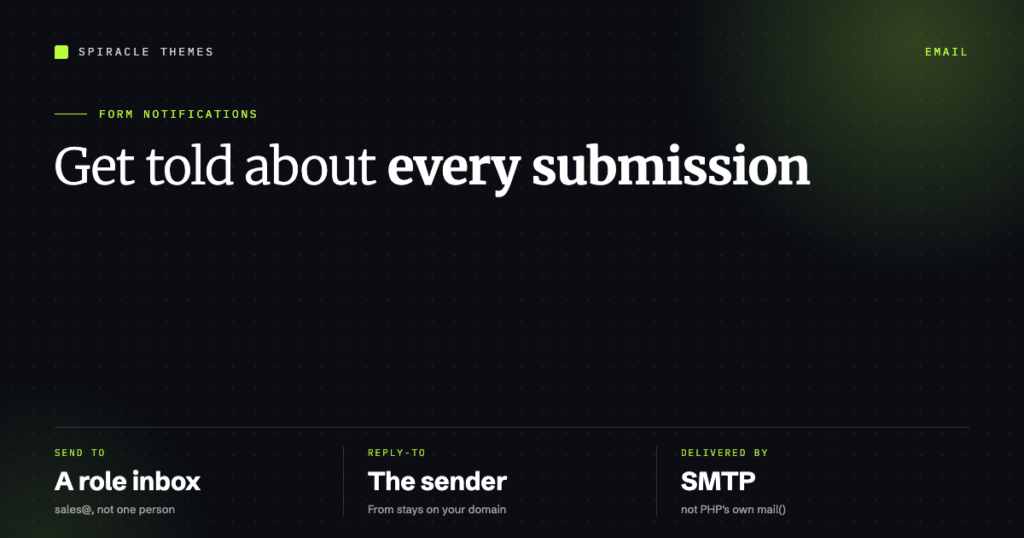
Every form plugin sends an email when a form is submitted — the setting is on by default. The problem is not enabling notifications, it is that they arrive at an address nobody reads, come from an address that fails authentication, or stop when the mail path breaks after an update.
This is the setup and delivery side: where the notification settings live in the three most used form plugins, how to send to multiple people correctly, and what to fix when the emails stop.
Where the setting lives, per plugin
| Plugin | Path to notifications | Multiple recipients |
|---|---|---|
| WPForms | Form → Settings → Notifications | Comma-separated in the Send To field |
| Contact Form 7 | Form → Mail tab | Comma-separated in the To field |
| Fluent Forms | Form → Settings & Integrations → Email Notifications | Add addresses, or add multiple notifications |
| Gravity Forms | Form → Settings → Notifications | Comma-separated, or one notification per person |
All four let you add more than one notification per form, which matters once different submissions need different people. A job application and a support request on the same site should not both land in the same inbox just because they share a plugin.
What a notification actually contains
The defaults are usually close, but check these fields on every form you build:
- Send To — the destination. Use a role address (
sales@) rather than one person’s inbox, so it survives staff changes. - From Name / From Email — must be an address on your own domain, and must be authenticated. A form sending “from” the submitter’s address is the single most common reason notifications vanish.
- Reply-To — set this to the submitter’s email field instead. That is how you reply to them from your inbox without copying an address.
- Subject — include the form name and a field value. Thirty identical “New form submission” subjects train you to ignore them.
- Message body — at minimum name, email, and the message. Include the page URL if you run more than one form.
The From/Reply-To split is the detail worth getting right: From is you (authenticated, on your domain), Reply-To is them.
Send the submitter a confirmation
A notification tells you; a confirmation tells the person their message went through, which is what stops duplicate submissions and “did you get my email?” follow-ups. In WPForms it is a second notification with the send-to set to the email field; in Contact Form 7 it is a second Mail template; in Fluent Forms it is a second notification with “Send to” pointed at the email field.
Two rules: never include the admin’s private notes or internal fields in the confirmation, and never promise a response time you will not meet.
Make delivery actually work
WordPress sends mail through PHP’s mail() by default. On shared hosting that function is frequently throttled, rate-limited, or blocked outright, and its output goes straight to spam even when it works. The fix is an SMTP plugin — WP Mail SMTP, FluentSMTP, or the mailer built into your host:
- Create a mailbox on your domain (for example
forms@yourdomain.com). - Connect it in the SMTP plugin with the host’s SMTP host, port 587 and TLS.
- Send a test from the plugin’s own test screen and confirm it arrives.
- Then submit a real form and confirm the notification arrives.
While you are there, check SPF and DKIM records exist for the sending domain. SMTP gets the message out; SPF and DKIM get it accepted. Without them, Gmail and Outlook will quietly file your notifications as spam — or drop them.
When notifications stop arriving
| Symptom | Likely cause | Check |
|---|---|---|
| Worked for months, then stopped | Mailbox password changed, or SMTP plugin deauthorised | The SMTP plugin’s email log and connection status |
| Only some submissions arrive | Host hourly mail limit, or spam filtering on volume | Host limits; move to a transactional provider |
| Arrives in spam consistently | From address not aligned with domain, missing DKIM | Authentication headers on a received message |
| Entries exist but no email | Notification disabled on that form, or wrong recipient | Per-form notification settings |
| Nothing at all, not even a success message | The form never submitted | That is a form problem, not a mail problem |
The distinction in the last row matters: if there is no entry and no success message, changing mail settings will not help. Checking whether a form was submitted at all covers that diagnosis.
Notifications beyond email
Email is fine until it is not. Two upgrades worth considering:
- Slack or Teams webhook — instant, searchable, and impossible to miss if your team already lives there. Most form plugins have a native integration or a webhook add-on.
- SMS for urgent forms — quoting requests and emergency callouts justify the per-message cost; newsletters do not.
Both are configured once and do not depend on your mail server at all, which makes them the more reliable alert channel for anything time-sensitive.
A notification setup worth copying
- One notification to a role address on your domain, From authenticated, Reply-To the submitter.
- One confirmation to the submitter, no internal fields.
- One Slack (or SMS) alert for the two forms that actually need a fast reply.
- Entries left enabled in the plugin, so nothing depends on email alone.
- A monthly test submission, because that is the only way to know it still works.
Point 5 is the one people skip. A contact form is infrastructure: it works until it quietly does not, and nobody notices for six weeks. Our WordPress care plans include that check as part of monthly maintenance, alongside updates and backups.
FAQ
Why am I not getting emails from my WordPress form?
In order of likelihood: PHP mail is blocked on the host, the From address is not on your domain, the notification is disabled on that form, or the mail is landing in spam. An SMTP plugin with logging answers all four in one screen.
Can I send form notifications to multiple email addresses?
Yes — comma-separate them in the Send To field in WPForms, Contact Form 7 and Gravity Forms, or create separate notifications in Fluent Forms. Separate notifications are better when different people need different subjects or fields.
Should the form send from the visitor’s email address?
No. That fails SPF and DKIM checks and gets filtered. Send from an address on your own domain and set Reply-To to the visitor’s address.
Do I need a plugin to send WordPress email reliably?
Yes, in practice. Core mail relies on the server’s PHP configuration, which on shared hosting is unreliable and unlogged. Any SMTP plugin fixes that, and most log every message so failures are visible.