


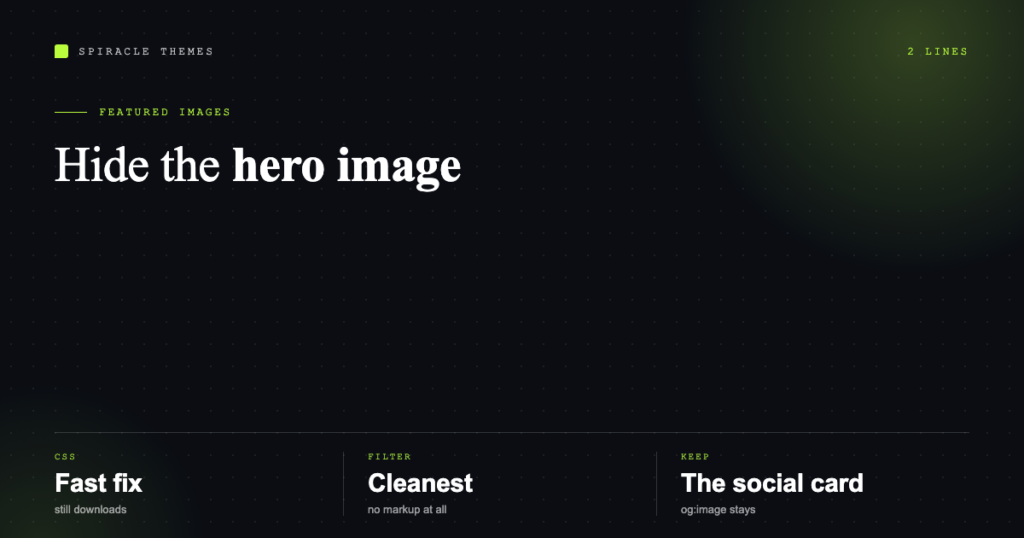
Hiding a featured image is a two-line job once you decide where you want it hidden: everywhere, on one post, or visually only while keeping the image for social sharing. The last option is the one most people actually want, and it is the one that gets done wrong.
First, decide which job you have
| What you want | Right approach |
|---|---|
| No featured image anywhere on the site | Remove the theme’s thumbnail call, or filter it out |
| Hidden on posts, kept on archives | Conditional in the template or a filter |
| Hidden on one specific post | A custom field plus a conditional check |
| Hidden visually, still used for social previews | CSS or filter, and keep the Open Graph tag |
| Hidden inside the post but visible as a card on the blog index | Template edit — the same image, two contexts |
Option 1: the theme setting
Check before writing code. Most modern themes have a toggle under Customize → Blog or Appearance → Customize → Single Post: “show featured image” or similar. If it exists, that is the correct fix — it survives updates and needs no code.
Option 2: hide it with CSS (fast, with a caveat)
/* hides the hero image but still downloads it */
.single .post-thumbnail,
.single .st-featured-image {
    display: none;
}
This is the fastest route and the one to avoid if performance matters: the browser still downloads the file, so a 400KB image is fetched and thrown away. It also breaks any layout that reserved space for it. Use it for a quick fix, not a permanent one.
Option 3: filter the output (clean, no download)
WordPress runs the featured image markup through post_thumbnail_html. Returning an empty string removes the image before the browser ever sees it:
add_filter( 'post_thumbnail_html', function ( $html ) {
    if ( is_singular( 'post' ) ) {
        return '';
    }
    return $html;
} );
That hides it on single posts and leaves archive cards alone. Change is_singular( 'post' ) to true to remove it everywhere, or to a page ID check to target one URL. Put this in a child theme’s functions.php or a small site-specific plugin — not in the parent theme, where an update will erase it.
Option 4: edit the template
If you want the markup gone rather than suppressed, find the call in the theme’s single-post template:
<?php if ( has_post_thumbnail() ) : ?>
    <?php the_post_thumbnail( 'large' ); ?>
<?php endif; ?>
Remove or comment that block in a child theme copy of the template. This is the most explicit fix and the most fragile, because the parent theme’s template will change. A filter is safer; a theme setting is safest.
Option 5: hide it on one post only
Add a custom field to the post — name it hide_featured_image, value 1 — then check for it:
add_filter( 'post_thumbnail_html', function ( $html ) {
    $hide = get_post_meta(
        get_the_ID(), 'hide_featured_image', true
    );
    if ( is_singular() && $hide ) {
        return '';
    }
    return $html;
} );
Now the editor can suppress the image per post without touching code again. This is the pattern to use when the request is “just this one page”.
The part people get wrong: social images
Hiding the featured image from the page does not remove the Open Graph image — and you usually do not want it to. WhatsApp, LinkedIn and X read og:image, which most SEO plugins generate from the same featured image.
So: CSS or filter hides the on-page hero, the social preview keeps working. If you then delete the featured image entirely, both disappear and shared links lose their thumbnail.
Check it before publishing: paste the URL into a social preview debugger and confirm an image still resolves.
What about the blog index?
Archive cards are usually generated from the same attachment. If you hide the image with CSS scoped to .single, the archive keeps its cards. If you remove the featured image from the post entirely, the card either collapses or shows a placeholder — which is why “hide on the post, keep on the card” is a template/filter job, not a media job.
Quick decision
- Theme has a toggle? Use it.
- Otherwise:
post_thumbnail_htmlfilter, scoped to what you want hidden. - One post only? Custom field plus the filter.
- Emergency CSS? Fine temporarily, but you are still shipping the image.
If the layout looks wrong after the image disappears — a gap above the title, a hero that collapses — the template is reserving space for it. That is a CSS fix on the container, not a reason to put the image back.
FAQ
Will hiding the featured image remove it from Google?
No. The image remains attached to the post and can still appear in image search; you have only removed it from the rendered page.
Can I hide it on mobile only?
Yes, with a media query — and here the CSS approach is legitimate, because on small screens the image is often the largest element above the fold.
Does this work with page builders?
Only if the builder uses the standard featured image. If it renders its own hero from a builder field, hide that element instead; the filter will have nothing to act on.
I hid the image and now the post looks empty at the top
The theme reserved space or set a minimum height. Adjust the container’s padding or min-height — the space is coming from the wrapper, not the image.