


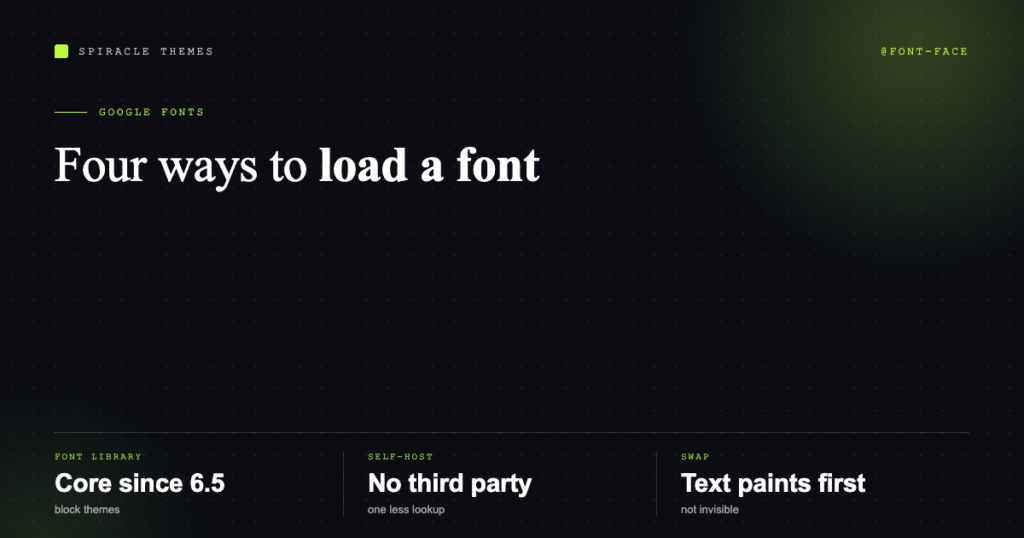
There are four ways to get a Google Font onto a WordPress site in 2026, and they are not equally good. Two of them are one-click, one is a plugin, and one is the method that actually produces the fastest site. Which one is right depends on whether you are running a block theme or a classic theme — and on whether you care about the privacy problem that comes with loading fonts from Google’s servers.
This guide covers all four, in the order most people should try them.
Before you start: which theme type are you on?
Go to Appearance → Themes. If the active theme shows a “Site Editor” link, it is a block theme and you have a built-in font manager. If it shows Customize and Widgets instead, it is a classic theme and you need method 2, 3 or 4.
That single distinction saves an hour of following the wrong tutorial.
Method 1: The WordPress Font Library (block themes, no plugin)
WordPress core has shipped a Font Library since version 6.5 — the WP_Font_Library class was introduced in 6.5.0 and it is what powers the font manager in the Site Editor. You can install any Google Font, upload your own font files, and manage them across the whole site without a plugin.
- Appearance → Editor → Styles (the half-circle icon in the top right).
- Open Typography → Fonts.
- The “Install Fonts” tab lists the Google Fonts catalogue. Search for the family, pick the weights and styles you need, and click Install.
- Go to the “Fonts” tab, open the family, and choose where it applies: text, headings, or both.
- Save.
The Font Library downloads the font files into wp-content/uploads/fonts/, which means they are served from your own domain — the privacy problem disappears, and so does the extra DNS lookup to fonts.gstatic.com.
Two limits worth knowing. It works with block themes only; on a classic theme the menu is not there. And it installs what you choose, so resist installing six families because the picker makes it easy.
Method 2: A plugin that self-hosts Google Fonts (classic themes)
If you are on a classic theme and do not want to touch code, use a plugin whose job is to download the font locally and rewrite the request. OMGF and Local Google Fonts are the two that do this properly; both are free, both store files in uploads/, and both include a “replace the Google CDN URL” step.
The reason to prefer them over simply pasting the Google link is not purity — it is that they also handle font-display: swap, which prevents the invisible-text flash that hurts Largest Contentful Paint on mobile connections.
The trade-off: these plugins work by scanning your site for Google Fonts requests and rewriting them. When a theme updates and changes how it enqueues fonts, the scan can miss one, and you are back to a third-party request without noticing. Re-check after theme updates.
Method 3: Enqueue the Google Fonts stylesheet (fastest to set up, worst for performance)
This is what most tutorials show, and it is the method I would use only for a quick prototype. Add to your child theme’s functions.php:
function st_enqueue_fonts() {
  wp_enqueue_style(
    'st-google-fonts',
    'https://fonts.googleapis.com/css2',
    array(),
    null
  );
}
add_action( 'wp_enqueue_scripts', 'st_enqueue_fonts' );
In practice you append the family and the display parameter, because the default returns a render-blocking stylesheet with no swap behaviour:
https://fonts.googleapis.com/css2
  ?family=Inter:wght@400;600;700
  &display=swap
Google’s own API documentation describes display and subset as the two parameters that control loading behaviour and script coverage. Set display=swap and restrict subset=latin unless you genuinely need Cyrillic or Vietnamese — the subset parameter is the difference between a 15KB and a 200KB download.
What this method costs you: an extra DNS lookup plus TLS handshake to fonts.gstatic.com before any text can render, and the visitor’s IP address going to Google on every page view. For a German or EU-facing site that second point is a legal question, not a preference; self-hosting is the standard answer.
Method 4: Self-host with @font-face (the fast, private option)
Download the family from Google Fonts (the download button gives you static or variable TTF/WOFF2 files), convert to WOFF2 if needed, upload to your child theme or the media library, and declare it:
@font-face {
  font-family: 'Inter';
  src: url('/wp-content/uploads/fonts/
       inter-latin-var.woff2') format('woff2');
  font-weight: 100 900;
  font-style: normal;
  font-display: swap;
  unicode-range: U+0000-00FF;
}
Three details do most of the work here:
- Variable fonts. Of the 1,959 families in the Google Fonts library, 565 ship as variable fonts — one file covering every weight, instead of four or five separate files. A variable family with
font-weight: 100 900is usually smaller than two static weights combined. font-display: swaplets text render immediately in the fallback font and swap when your font arrives. Without it, text stays invisible for up to three seconds, which is exactly what the LCP metric punishes.- Preload the file you actually use above the fold, not the whole family:
<link rel="preload" as="font" type="font/woff2"
  href="/wp-content/uploads/fonts/inter-latin-var.woff2"
  crossorigin>
If you are on a block theme, you can register the same files in theme.json instead of writing CSS by hand. The fontFace property under typography.fontFamilies maps directly to @font-face rules and generates the CSS custom property for you, which is what the WordPress theme handbook recommends for bundled fonts.
Which method should you pick?
| Situation | Use | Why |
|---|---|---|
| Block theme, no code | Font Library | Core feature, self-hosts automatically |
| Classic theme, no code | OMGF / Local Google Fonts | Downloads and rewrites for you |
| Prototype or staging | Enqueue css2 URL | Ten seconds to test a look |
| Performance or EU privacy matters | Self-host @font-face | No third-party request, one round trip fewer |
How many fonts should you actually load?
One family, two or three weights, and a system-font fallback. That is the whole recommendation. Every additional family adds a file download and a chance for layout shift when it swaps in.
If a design calls for a display face on headings and a text face on body copy, that is the one legitimate two-family case — and even then, load the heading font in a single weight and let the body font do the work.
Verifying it worked
- View the page source and search for
fonts.googleapis.com. On a self-hosted setup there should be zero matches. - Open DevTools → Network → Font, reload, and confirm the WOFF2 files are served from your own domain with a 200.
- Check the Computed tab on an
h1to confirm the family actually applied — a fallback stack silently winning is the most common failure. - Run the page through PageSpeed Insights and look at the LCP element. If the heading is the LCP element and it is still invisible at 2.5s, the font is blocking.
Common questions
Do I need a plugin to use Google Fonts?
No. Block themes have the Font Library in core; classic themes can use a few lines of CSS. Plugins exist to save you the download-and-convert step, not because the platform requires them.
Are Google Fonts free for commercial use?
Yes. Every family in the library is open source under licences that permit commercial use and embedding — mostly SIL Open Font License or Apache. Check the individual family page if you are redistributing the files themselves.
Will loading fonts from Google slow my site down?
It adds a third-party connection before text renders. On a fast connection you will not feel it; on a 3G phone it is measurable, and it is one of the easier points to win back by self-hosting.
Why does my font look different from the preview?
Usually weights: the preview shows 400, 500 and 700, and you enqueued only 400, so the browser synthesises a fake bold. Request the weights you actually use.
Once the fonts are in place, the next performance decision is the theme itself — and if you are still choosing one, Elementor versus Gutenberg covers how each builder handles typography and page weight.