


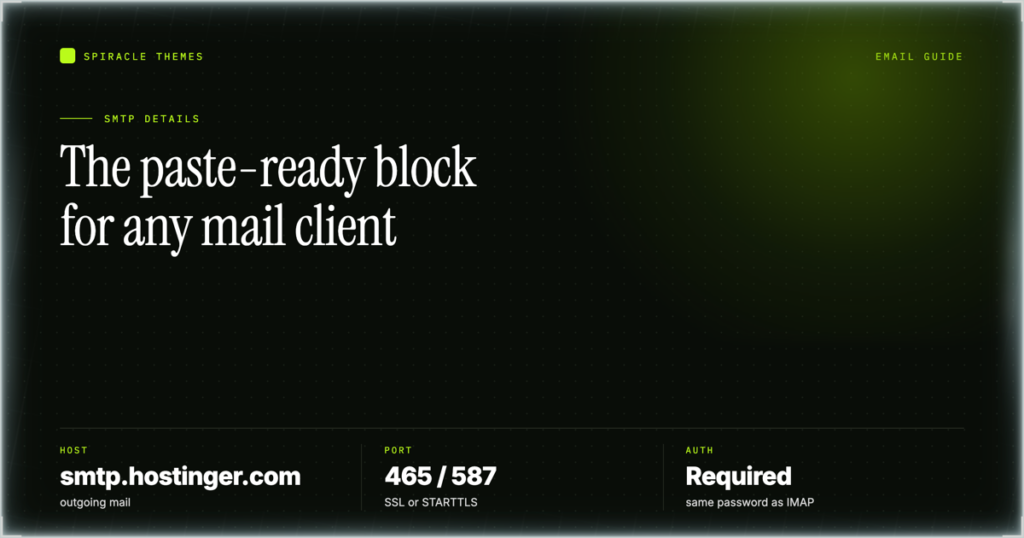
Copy these and stop reading if that is all you need. The outgoing server is smtp.hostinger.com, port 465 with SSL, port 587 with TLS/STARTTLS as the fallback. The incoming server is imap.hostinger.com on port 993 with SSL, or pop.hostinger.com on port 995 with SSL. In every case the username is the complete email address and the password is the mailbox password. The rest of this page explains what each field is doing and the specific mistakes that make a correct-looking configuration fail.
Hostinger SMTP details, paste-ready
| Field | Value to enter |
|---|---|
| Protocol | SMTP |
| Server hostname | smtp.hostinger.com |
| Port | 465 |
| Encryption | SSL |
| Port (alternate) | 587 |
| Encryption (alternate) | TLS / STARTTLS |
| Username | name@yourdomain.com (the full address) |
| Password | Mailbox password |
| Authentication | On, same credentials as incoming |
| Incoming IMAP | imap.hostinger.com, SSL, 993 |
| Incoming POP3 | pop.hostinger.com, SSL, 995 |
Keep this block with the mailbox record, not with the site record. The values belong to a mailbox on a domain, and a domain can hold mailboxes on more than one service, which is where most confusion starts.
Need somewhere to host the site these mailboxes belong to? check the current Hostinger hosting plans — Premium is $1.99/mo on a 48-month term ($95.52 up front, renews at $10.99/mo), and every hosting plan carries a 30-day money-back guarantee.
What each field actually means
Server hostname. This is the name of Hostinger’s mail infrastructure, and it is also the name the TLS certificate is issued to. Typing your own domain, or the IP address of your hosting server, into the host field is the single most common reason a client reports a certificate name mismatch: the connection reaches a mail server that is not presenting the certificate the client expected.
Port and encryption. These two fields are one decision, not two. Port 465 expects encryption to be established immediately, which clients label SSL, SSL/TLS or “implicit TLS”. Port 587 expects a plain connection that is upgraded in place, which clients label STARTTLS or TLS. A client given 465 with STARTTLS waits for an upgrade that never comes; a client given 587 with SSL tries to negotiate encryption on a port that expects a command first. Both end in a timeout rather than a clear error.
Username. This is a login, not a label. It has to be the complete address including the domain, because the mail server hosts many domains and uses the domain part to decide which mailbox store to authenticate against. Some clients split the field into “username” and “domain”, or store a display name separately; the display name is irrelevant to authentication and changing it will not fix a rejected login.
Password. The mailbox password, created and reset in hPanel under Emails, then Manage next to the domain. It is not the password for the hosting account, and it is not affected by changing that account password. A mailbox that authenticates in webmail at mail.hostinger.com has a working password, which makes webmail a useful tie-breaker.
Authentication setting. Where a client separates “authenticate to the outgoing server” from the login fields, it must be on and set to reuse the incoming credentials. Turning it off is occasionally suggested as a fix for a send failure; on these servers it converts a credential error into a relay error, which is harder to diagnose.
The three mismatches that cause failed sends
| Mismatch | What you see | What to change |
|---|---|---|
| Port and encryption crossed | Connection timeout, or “cannot connect to server”, with no rejection message | 465 with SSL, or 587 with TLS/STARTTLS. Never 465 with STARTTLS or 587 with SSL |
| Account password used as the mailbox password | Server rejects authentication, often repeatedly, and webmail fails too if you try the same password there | Reset the mailbox password in the Emails section and enter that value, not the hPanel one |
| Short username instead of the full address | Incoming mail works because it was configured earlier, outgoing fails authentication | Put the complete address, domain included, in the outgoing username field |
There is a fourth failure that is really a copying error rather than a field error: pasting values from a different mail service into these fields. The table below is the reason that happens so often.
Hostinger Email, Titan Email and cPanel Email are separate services
A single hosting account can hold mailboxes from more than one of these, and each uses its own hostnames, ports and login rules. The values on this page apply only to Hostinger Email. Titan Email is a distinct service with its own values, and legacy cPanel Email belongs to the older cPanel stack. When you open one, you get that service’s values; when you open another, the values in this table are wrong for it.
| Service | Where its values come from | Symptom of mixing |
|---|---|---|
| Hostinger Email | The values in this article, also shown under Emails, Manage, Connect Apps & Devices | Not applicable: this is the correct set for this service |
| Titan Email | The Titan configuration details for that mailbox, not this page | Authentication fails against a server that does not hold the mailbox |
| cPanel Email (legacy) | The cPanel account’s own email configuration screen | Authentication fails, because the credentials belong to another server |
The practical rule: identify the service first, then copy. If a domain shows mailboxes in two places, the mailbox you are configuring has one owner, and only that owner’s panel has valid values for it. If you cannot tell which service holds a mailbox, send it a test message from an outside address and check which interface receives it.
POP3 keeps mail on the server now
Hostinger’s POP3 behaviour changed: a POP3 client downloads mail to the device, but the message stays in webmail. Deleting the local copy no longer deletes the server copy, and a POP3 client that reports an empty inbox after a download has not removed anything. To clear the mailbox you have to delete the messages in webmail, or move the account to IMAP.
IMAP is the better choice wherever the mailbox is read from more than one place, because IMAP syncs deletions across devices: a message deleted on a phone disappears from the laptop and from webmail. POP3 is reasonable for a single device with a local archive and a mailbox that will not grow. What it is no longer good for is freeing space, which is the job people most often assign to it.
The incoming side has its own set of failure modes, covered in the IMAP settings guide, including what changes when one device uses POP3 and another uses IMAP on the same mailbox. If a mailbox is shared by a team, agree on one protocol before anyone configures a client, because a POP3 device that downloads and keeps mail will disagree with an IMAP device about what still exists.
Where these details come from, and when to use the other guide
All of the above is published by Hostinger in its email account configuration article and repeated inside hPanel under Emails, Manage, Connect Apps & Devices. That panel is the authority if the published values ever change, and it is per mailbox rather than per account, so it is the one screen worth bookmarking.
This page deliberately stops at the values. It does not walk through Outlook, Apple Mail, Thunderbird or a WordPress SMTP plugin screen by screen, because the fields differ by client version and the walkthrough ages faster than the values do. The SMTP settings guide covers those installations, including the WordPress plugin fields and the Contact Form 7 behaviour, and it uses the same block above.
One related value set is worth checking at the same time: if mail sends but lands in spam, the problem is usually the domain’s SPF and DKIM records rather than SMTP, and those live in the DNS zone. The record-level explanation is in the DNS records reference.
Setting up mail for a new site? check the current Hostinger hosting plans — Premium is $1.99/mo on a 48-month term ($95.52 up front, renews at $10.99/mo), and every hosting plan carries a 30-day money-back guarantee.
Frequently asked questions
What is the difference between SMTP settings and SMTP details?
Nothing in the values: both names refer to the same hostname, port, encryption, username and password. The distinction is in how the page is used. Details means the block you copy and paste, with the meaning of each field. Settings usually means the same block applied to a specific client or plugin. If you arrived looking for the five values, they are in the table at the top.
Why does port 587 work for one person and not another?
Almost always because the encryption field differs between their clients. A client set to STARTTLS on 587 connects; a client set to SSL on 587 does not. The second likely cause is a network that permits 465 but blocks 587, or the reverse. Comparing the two configuration screens field by field takes less time than testing alternatives one at a time.
Can I use my Hostinger account password for SMTP?
No. Mail authentication uses the mailbox password only, and the account password never travels over SMTP. If you have one mailbox and one account, it is easy to assume they are the same credential, but they are stored separately and reset separately. Changing the account password leaves mail working; resetting the mailbox password breaks every client until each one is updated.
Does the incoming server have to match the outgoing one?
They have to come from the same service, not from the same hostname. Hostinger Email uses imap.hostinger.com or pop.hostinger.com for incoming and smtp.hostinger.com for outgoing, which is a matched set. Pairing a Hostinger outgoing server with another provider’s incoming server produces a mailbox that receives but cannot send, or the reverse, depending on which half is wrong.
What password do I give a team member?
The mailbox password for the mailbox they will use, or a mailbox of their own. Sharing one mailbox avoids the cost of another address but puts everyone on the same credential, so a password reset interrupts the whole team at once. A separate mailbox per person keeps the SMTP details identical in form and keeps resets contained to one person.
Where is webmail?
At mail.hostinger.com. Signing in there with the full address and the mailbox password confirms both halves of the credential before you touch a mail client. If webmail rejects the login, the problem is the password or the mailbox itself; if webmail accepts it and the client does not, the problem is in the client’s fields.
Write the block down once per mailbox and treat any later failure as a comparison exercise: the client against the block, field by field, before changing anything. In practice the value that has drifted is a port, an encryption label or a username that lost its domain, and all three are visible in a single glance.