


Monthly WordPress maintenance is not a mystery box, and it is not “we log in and click update.” It is a fixed list of checks run in a fixed order, roughly two to four hours of work a month, and the order matters more than the list. Backups come before updates because updates are the thing most likely to break a site. Updates come before performance work because a broken plugin makes every speed test a lie.
This guide sets out what a month of maintenance actually contains, what can safely be automated, and what a report should show you at the end of it.
What a month of maintenance should contain
Twelve tasks, grouped by what they protect. Anything on this list that a provider cannot describe in plain language is probably not being done.
| Task | What it protects | Realistic time |
|---|---|---|
| Backup, then verify the backup exists and is restorable | Everything | 10 min |
| Core, plugin and theme updates on staging first | Uptime | 30 to 60 min |
| PHP version and extension check | Speed and security | 10 min |
| Malware and file-integrity scan | Reputation, Google warnings | 15 min |
| Uptime and SSL certificate expiry check | Trust, conversions | 5 min |
| Form and checkout test with a real submission | Revenue | 10 min |
| Database cleanup: revisions, transients, expired rows | Speed, backup size | 15 min |
| Performance spot check on the slowest template | Rankings, bounce rate | 15 min |
| Broken links and 404 review | Crawl health | 15 min |
| Search Console and analytics glance | Early warning | 10 min |
| User and access review | Security | 5 min |
| Written report with what changed and what is next | Accountability | 20 min |
The order matters: backup, then update, then test
Most maintenance failures are sequencing failures. A provider updates twenty plugins, the site white-screens, and there is no backup from the same day because the backup runs at 2am. Or the backup exists but nobody has ever restored it, so the first real restore attempt is also the first test of the backup plugin.
The safe sequence is short:
- Take a backup, or confirm the nightly one completed after the last change.
- Restore that backup to a staging copy and confirm it loads. This is the only proof the backup is real.
- Update on staging, in this order: core minor, then plugins one at a time, then themes, then core major.
- Click through the pages that earn money: home, a product or service page, the contact form, checkout.
- Push to live, then repeat the click-through.
One at a time matters. Batch-updating ten plugins means that when something breaks, you have no idea which one did it, and the debugging starts with a bisect instead of a rollback.
The update rule that prevents most outages
Three things cause the majority of update-related incidents, and none of them is “WordPress is unstable”:
- A plugin abandoned by its author. Check the plugin’s page on WordPress.org for “Tested up to” and the last-updated date. A plugin untouched for two years is not automatically dangerous, but it is running code nobody is patching.
- A PHP version jump nobody tested. Moving from PHP 8.1 to 8.4 in one step on a live site is a coin flip. Move staging first, check the error log, then move live.
- An outdated PHP version nobody moved. The opposite failure, and the more common one. PHP 8.1 and older stopped receiving security fixes on 31 December 2025, and PHP 8.3 has been security-only since the same date. A host still defaulting to 8.1 is a maintenance problem wearing a hosting costume.
What WordPress already does automatically
Worth knowing before you pay anyone for it. Since WordPress 3.7, minor and security releases install themselves in the background on most hosts. Major feature releases do not: they need someone to click “Update Now.” Plugin and theme auto-updates exist too, but they are off by default and should stay off on any site where a broken plugin costs money.
So the automated part is the small, safe part. The judgement part, deciding whether a plugin update is compatible with your theme and your PHP version, is exactly what a maintenance plan is for.
Security is a checklist, not a plugin
Installing a security plugin and calling it done is the most common false comfort in WordPress. The checks that actually change your exposure:
- Two-factor authentication on every administrator account, and no shared logins.
- Least privilege: editors do not need administrator, and the account that publishes posts does not need plugin access.
- Login hardening: limit attempts, rename or protect the login URL if your host supports it.
- An audit of inactive plugins and themes. Deactivated code is still code on disk, and still a liability if it has a known vulnerability.
- File-integrity checks that tell you when a core file changed, not just when a scanner found a signature.
Performance: measure one number before touching anything
Speed work without measurement is decoration. Two numbers tell you where the problem is:
- Time to first byte. web.dev’s guidance is 0.8 seconds or less, with anything above 1.8 seconds counted as poor. If TTFB is high, the problem is the server, the PHP version, or an uncached query, and no image optimisation will fix it.
- Core Web Vitals. Google’s thresholds are LCP at 2.5 seconds, INP at 200 milliseconds and CLS at 0.1. If TTFB is fine but LCP is not, the problem is the page: hero image weight, render-blocking CSS, a slow font, a heavy slider.
That split stops the usual wasted month of installing caching plugins on a site whose real problem is a 6MB hero image, or compressing images on a site waiting 3 seconds for the database to answer.
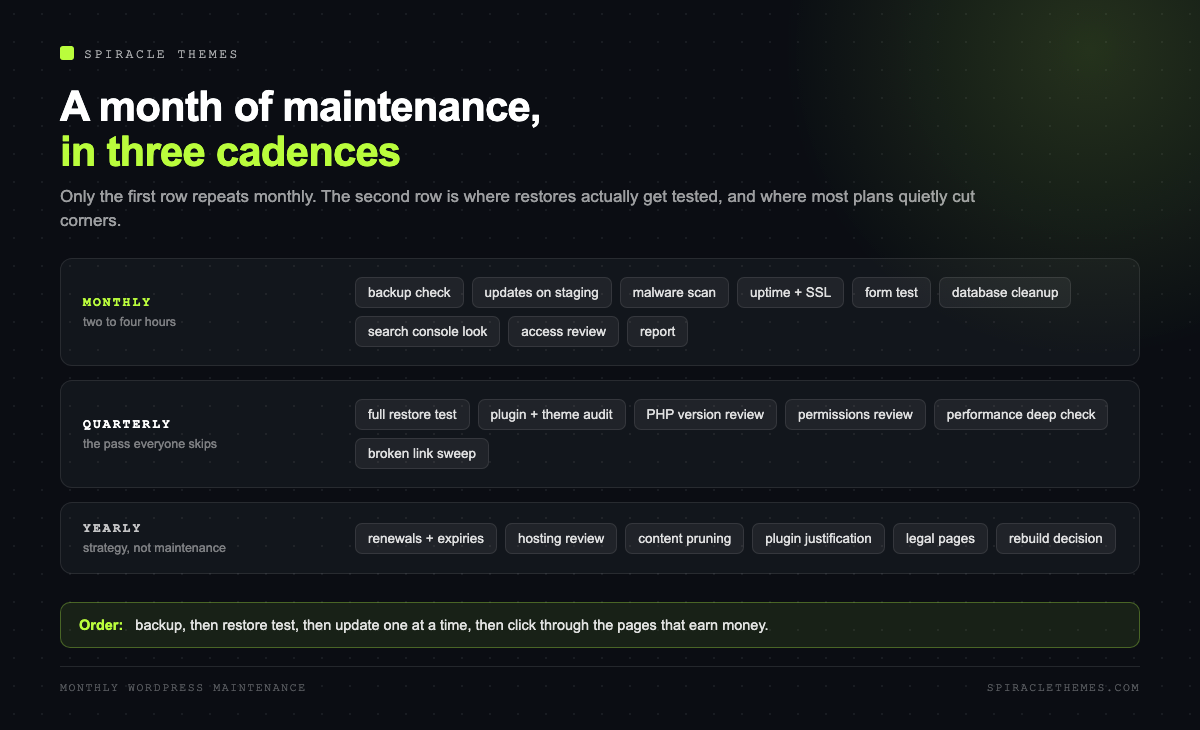
Monthly, quarterly and annual
Not everything belongs in the monthly pass. Trying to do all of it every month produces a rushed job where the restore test gets skipped.
| Cadence | Tasks |
|---|---|
| Every month | Backup check, updates on staging, malware scan, uptime and SSL, form test, database cleanup, report |
| Every quarter | Full restore test on a staging copy, plugin and theme audit, PHP version review, access review, performance deep check |
| Once a year | Renewals and expiry dates, renegotiate hosting, content audit and pruning, review whether each plugin still earns its place, refresh legal pages |
What the report should say
If you cannot tell what was done last month, the plan is not working. A usable report is dull and specific: what was updated and to which versions, what failed and was rolled back, backup status and last restore test date, scan results, page speed before and after, anything found but not fixed, and what is scheduled next.
“Everything is fine” is not a report. “Updated 9 plugins, WooCommerce 9.x failed on staging and was held, restore test passed on the 3rd, LCP on the homepage went from 3.1s to 2.4s, one abandoned plugin flagged for replacement” is.
Five failures that actually happen in a month
Maintenance advice tends to describe theory. In practice, the same handful of incidents recur, and each one has a cheap preventive:
- A form stopped sending email weeks ago and nobody noticed. Email deliverability changes when a DNS record is edited or a host rotates an IP. A monthly test submission with a real inbox check catches it before a customer does.
- A plugin update removed a feature the site depended on. Read the changelog before updating plug-ins that touch checkout, forms or membership. “Compatibility with WordPress 7.x” is not the same as “nothing removed”.
- The disk filled up with backups. Backup plugins that keep 30 daily copies on the same server are not backups, they are disk usage. Keep copies off-server, and cap retention.
- A staging site got indexed. Someone forgot the noindex, and Google now has two copies of every page. Check that staging is behind authentication, not just a robots rule.
- The certificate expired over a weekend. Auto-renewal fails silently when a DNS challenge record changes. Expiry monitoring costs nothing and prevents the worst kind of Monday.
How to read a maintenance contract
Most disappointment comes from a contract that describes activity rather than outcomes. Four questions separate the two:
- What happens when the site is down at 2am: who is paged, and how fast?
- Is there a staging environment, and is testing on it included or extra?
- What is excluded: content edits, new features, plugin licences, emergency work after a hack?
- What is the response time, and what credit applies if it is missed?
A plan that answers all four in writing is usually a plan that does the work. A plan that answers with “we take care of everything” is a plan you will argue with in month four.
What maintenance cannot fix
Worth saying plainly, because it is where most disappointment comes from. Maintenance keeps a working site working. It does not fix a site with no clear offer, thin content, a confusing navigation, or a product nobody searched for. It also does not make a badly built site fast: if the theme loads four sliders and 90 scripts, tuning the cache is polishing a bad decision.
Those are strategy and build problems. A good maintainer will tell you when the honest answer is “this needs rebuilding, not maintaining.”
DIY or a plan: the honest trade
DIY is entirely reasonable if you have one site, no checkout, and time on a Tuesday morning. The work is not difficult; it is just relentless, and it competes with the work that actually earns money. What you cannot DIY easily is the part that needs infrastructure: staging environments, restore testing, and someone awake when the site goes down at 2am.
A monthly plan makes sense when a broken site costs more than the plan, which for anything selling online is almost immediately. If that is where you are, our WordPress maintenance plans cover the schedule above, and the care plan breakdown explains what changes month to month.
FAQ
How long should maintenance take each month?
Two to four hours for a typical business site with 15 to 25 plugins. A WooCommerce store with more integrations takes longer, mostly because the post-update click-through is longer.
Do I need to update plugins every month?
Check monthly, apply monthly for security-relevant releases, and do not batch-defer for a quarter. Deferred updates compound: the longer you wait, the more versions you skip, and the more likely a single update crosses a breaking change.
Is it safe to let WordPress update itself?
Minor and security releases, yes: that is the default and it is how most sites stay patched. Major feature releases and plugin updates, no: those need a staging test first.
What happens if an update breaks the site?
You restore the backup taken before the update, which is why the backup comes first and why it gets restore-tested. Rolling back a plugin version is usually enough; restoring the whole site is the fallback, not the first move.
Does maintenance help SEO?
Indirectly, and reliably: uptime, speed and a clean crawl all feed rankings, and a hacked site can be removed from results entirely. It will not outrank better content on its own.
If your site is slow rather than broken, the order of diagnosis is different and worth reading next: why WordPress sites get slow and what to fix first.