



The first thing to understand about moving from Webflow to WordPress is that Webflow’s code export is not a migration tool. It is a backup of your HTML, CSS, JavaScript and assets, and Webflow’s own documentation says exactly what it leaves behind. Read that list before you promise anyone a two-week switch.
What the export actually contains
From Webflow’s help centre, verbatim in substance: code export gives you the site’s HTML, CSS, JavaScript and assets, and it is available only on paid Workspace plans. Site plans do not include the ability to export code at all, which surprises people who have been paying for hosting for years.
What is excluded from exported code:
- CMS content, meaning your blog posts, case studies, team members and any other Collection data
- User accounts
- Ecommerce content
- Code components
- Localized pages, elements and content
Webflow is blunt about the consequences: on an exported site, Collection lists show their empty state, and Collection pages show none of the content bound to Collection fields. Password-protected pages lose their protection. Site search stops working. Forms stop working, including file upload and reCAPTCHA, for GDPR reasons, unless you repoint them at a third-party form action URL.
So the export is a static snapshot of your design with the content stripped out. That is still useful. It is not the migration.
The four honest routes
| Route | What it gives you | When it is right |
|---|---|---|
| Export the static HTML and rebuild it as a WordPress theme | Exact design fidelity, real content re-entered in WordPress | Small site, 10 to 30 pages, design matters |
| Pull Collections through the Webflow Data API, import to WordPress | Content moves in bulk, design is rebuilt separately | Content-heavy site: blog, directory, catalogue |
| Rebuild in WordPress from the live site, copy by hand | Cleanest result, slowest | You are redesigning anyway |
| Hybrid: keep Webflow front end, use WordPress as headless CMS | No design rebuild, ongoing complexity | Team knows both stacks and the design is not changing |
Most businesses end up in the first two rows, and the deciding factor is content volume, not design.
Start with an inventory, not a build
Before any code moves, count what is actually there. Pull the sitemap and list every URL, then mark each one:
- Keep as is: same URL, same purpose.
- Keep, new URL: content survives, path changes.
- Merge: two or three thin pages become one.
- Drop: outdated, duplicated, or a page nobody links to.
This list becomes your redirect map, and it is the single document that decides whether the migration keeps its traffic. Do it before launch, when you can still change the plan cheaply.
URLs and redirects: where migrations lose traffic
WordPress will serve whatever permalink structure you choose, so the goal is to change as few paths as possible. Webflow’s default structure often looks like /blog/post-name; WordPress can match that with a custom permalink or a category base. Where a path has to change, redirect it 1:1 to the closest page on the new site, with a 301.
Two rules that prevent the classic damage:
- Never redirect everything to the homepage. A 301 to a relevant page passes the signal; a mass redirect to home is treated as a soft 404 and loses the value.
- Keep the redirect map as a file, not as a plugin setting you will forget. A CSV of old path to new path belongs in the project, so a later change does not break it.
Also worth knowing: if you are keeping the same domain, you do not need Search Console’s Change of Address tool, which is for domain moves. You do need the sitemap swapped and the old one returning 404 or a 301, so Google stops crawling Webflow’s XML.
Content: migrate what earns its place
The temptation is to move everything, because moving is mechanical. Resist it. A Webflow site often carries pages that were built for a campaign two years ago, plus Collection items that were never linked from anywhere.
Before importing, check each page for its value: does it have organic traffic, does it earn links, does it answer a question a customer asks. Pages that fail all three should be dropped and 410’d rather than migrated, because migrating them just rebuilds the same thin content on a new stack.
For blog and Collection content, the Webflow Data API exposes Collections and items, which is the practical way to pull structured content into a CSV you can import with a tool like WP All Import. Title, slug, rich text body, featured image URL, publish date and SEO fields all survive that route; the design does not, and has to be rebuilt in the theme.
The SEO carry-over checklist
- Titles and meta descriptions: Webflow stores them per page and per Collection item. Export them, do not rewrite them from scratch unless they were bad.
- Open Graph and Twitter cards: same source, same export.
- Schema: check what Webflow was outputting, often nothing beyond basic article markup, and decide what WordPress should output instead.
- Canonicals: every migrated page must self-canonicalise. This is the most common silent failure, and it is invisible without checking the page source.
- Images: export originals, then resize and convert to WebP. Webflow’s exported assets are often the original uploads, which are larger than what was served.
- Internal links: Webflow’s rich text links point at Webflow URLs. Rewrite them in the import, not after.
Forms, search and the things that quietly stop working
Forms are the most common post-launch surprise. On Webflow, the native form element posts to Webflow’s servers. On an exported site, and on a rebuilt WordPress site with the same markup, that endpoint is gone. Rebuild the forms natively in WordPress with a form plugin, and point notifications at an SMTP-sending setup rather than PHP mail(), which is the usual reason “the form works but no email arrives”.
Site search needs replacing too. WordPress has its own, and on a large site it is worth tuning rather than accepting the default relevance, which is not good on more than a few hundred posts.
The launch sequence
- Build and test on a staging domain or a hosts file override, never on the live domain.
- Import content and verify counts: posts, pages, images, authors, categories.
- Load the redirect map and test 20 of the highest-traffic old URLs personally.
- Lower DNS TTL to 300 seconds a day before the switch.
- Point DNS at WordPress hosting, issue the SSL certificate, confirm https and the www or non-www canonical choice.
- Submit the new sitemap in Search Console, then watch the Pages report for 404s for two weeks.
Choosing the new stack, before the content moves
Two decisions get made too late, usually in week three, when changing them is expensive:
- Blocks, theme builder or page builder. If the Webflow site was hand-designed with interactions, expect a block theme with custom patterns to get close, and a builder to get closer with more page weight. Decide before anyone starts, because the content model depends on it.
- How the content is modelled. A Webflow Collection usually maps to a WordPress custom post type or a category, not to a page. Getting that mapping wrong means re-importing later, which is the one job nobody wants to do twice.
Write the mapping down as a table: Webflow Collection to WordPress post type, field to field, image field to featured image, rich text to content, slug to slug. That document is the migration.
Content worth rewriting during the move
Migration is the cheapest moment you will ever get to fix content, because the pages are being touched anyway. Three cases where rewriting beats importing:
- Pages written for a product you no longer sell. Redirect them to the closest current page, do not migrate them.
- Thin Collection items with 50 words and no links. Merge them into one substantial page rather than importing 40 near-empty pages.
- Pages whose only purpose was a campaign. If the campaign is over, the page is dead weight in the index.
Everything else should move as-is, including titles and meta descriptions. Rewriting good pages during a migration adds risk to a change that already has enough variables.
What the migration actually costs in work
Not money, since that varies by who does it, but effort, which is more predictable:
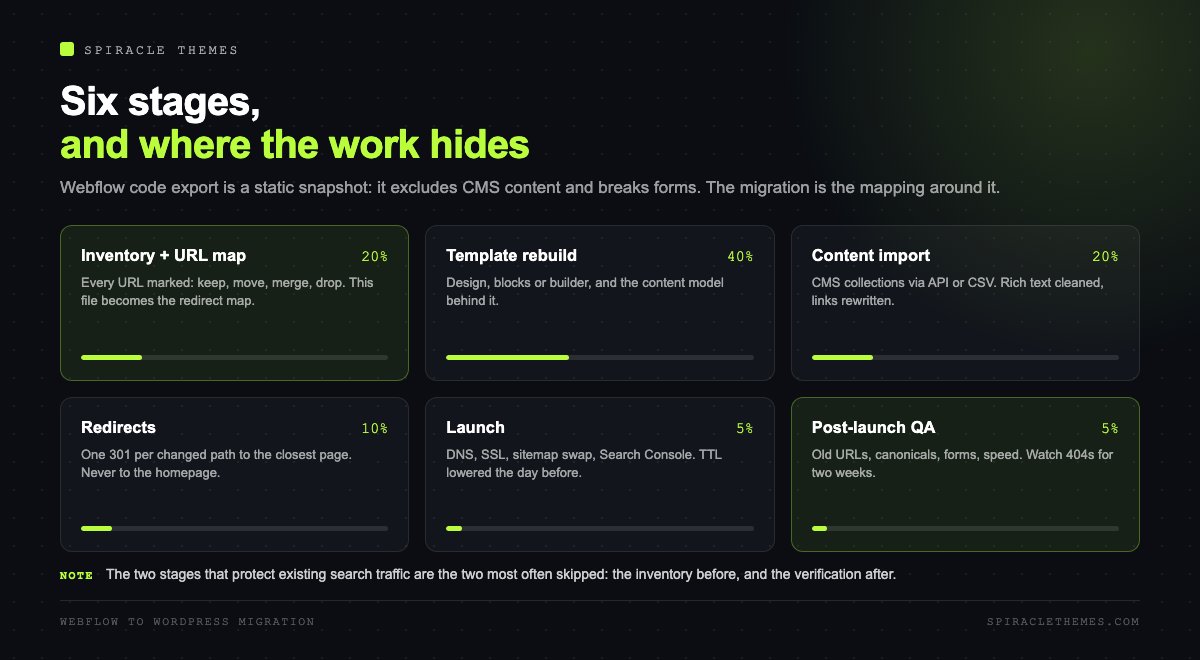
| Stage | Share of the work | Where it goes wrong |
|---|---|---|
| Inventory and URL mapping | 20 percent | Skipped, then discovered after launch |
| Template rebuild | 40 percent | Interactions and responsive behaviour |
| Content import and cleanup | 25 percent | Rich text pasted with Webflow classes |
| Redirects and QA | 15 percent | Chains, and redirects to the homepage |
The two stages most often underfunded are the first and the last, which are precisely the ones that protect your existing search traffic.
Post-launch QA, in the order problems actually appear
- Redirects: crawl the old URL list and confirm each returns a single 301 to a 200, not a chain.
- Canonicals and robots: spot-check ten pages in the page source.
- Forms: submit one on live, confirm the email arrives, confirm the entry is stored.
- Speed: run PageSpeed Insights on the homepage and one content template. Migrations routinely ship heavier pages than the Webflow site, because WordPress accumulates plugins.
- Indexed pages: expect a dip in impressions for one to three weeks. A dip that persists past a month is a redirect or canonical problem, not “the algorithm”.
How long it takes
A 15-page brochure site with five Collection items: a few days of build plus a day of content and QA. A 200-post blog: two to four weeks, most of it content mapping and redirect verification. The build is rarely the long pole; the inventory and the redirects are.
If the migration is happening because the Webflow site has become slow to edit rather than slow to load, the same discipline applies to what comes after: a monthly maintenance schedule is what keeps a newly migrated site from accumulating the problems the old one had.
FAQ
Can I export my Webflow CMS content?
Not through code export. Collection content is explicitly excluded, and Collection lists and pages render empty on an exported site. Use the Webflow Data API, or export a CSV from the CMS panel, then import into WordPress.
Do I need a paid Webflow plan to export code?
Yes. Code export is a Workspace plan feature, not a Site plan feature. Many owners discover this on the day they plan to leave.
Will migrating from Webflow hurt my SEO?
Temporarily, usually. Rankings survive if URLs are redirected 1:1, titles and canonicals carry over, and the new site is not slower. They do not survive a mass redirect to the homepage or a canonical pointing at a staging URL.
Can I keep Webflow for design and use WordPress for content?
Yes, as a headless setup: Webflow fetches content from the WordPress REST API. It works, it is more complex to maintain, and it usually makes sense only if the design is stable and someone on the team understands both sides.
What happens to my Webflow forms after migration?
They stop. The native form element needs Webflow hosting. Rebuild forms in WordPress with a form plugin and a proper mail sending setup.
Migrating because of cost rather than design? Compare the platforms honestly first: WordPress.com versus WordPress.org explains which WordPress you would actually be moving to.