New to Blogson? Watch video tutorial to get started
Where to find the Blogson Child theme
Download the child theme here. Only required when you are doing custom coding to add more features.
How to use 1 Click Demo Import to import the demo content
Step 1) Install and activate all the recommended plugins.
Step 2) Go to Appearance -> Import Demo Data.
Step 3) Choose Demo and Import.
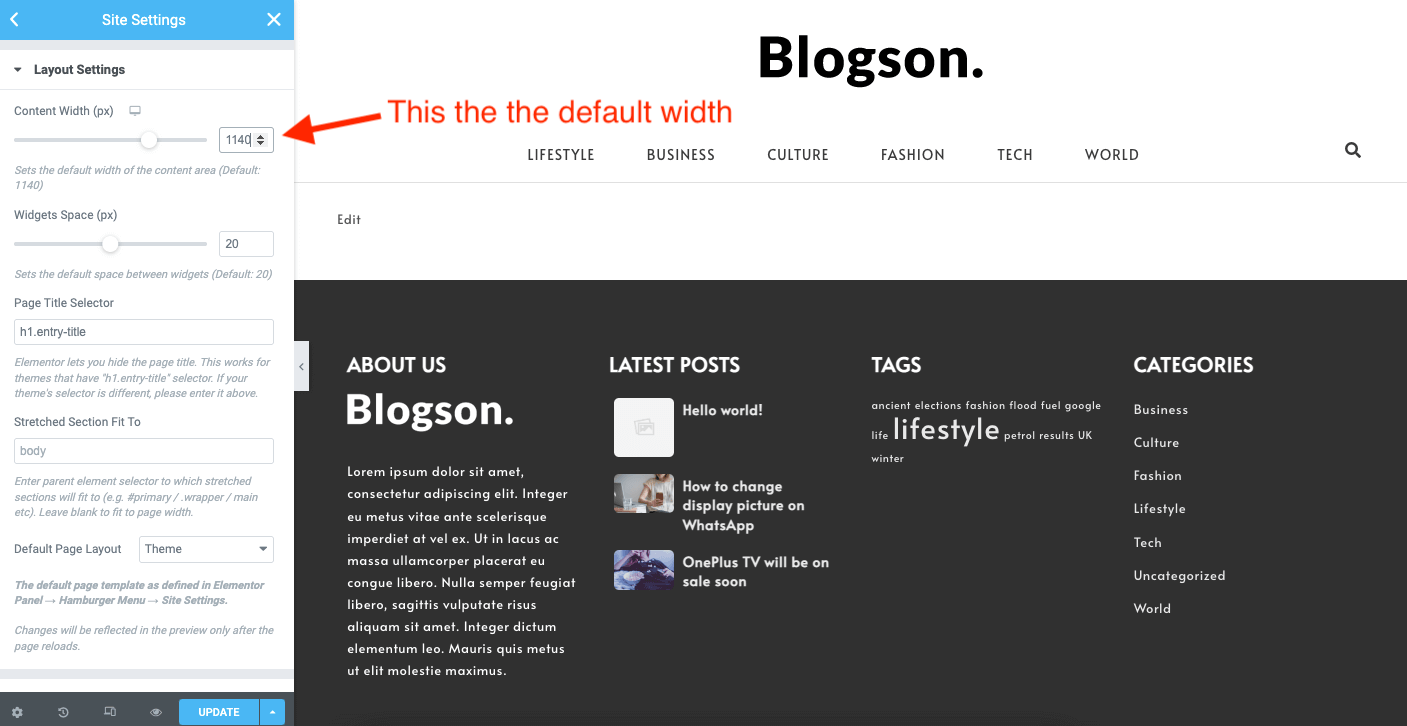
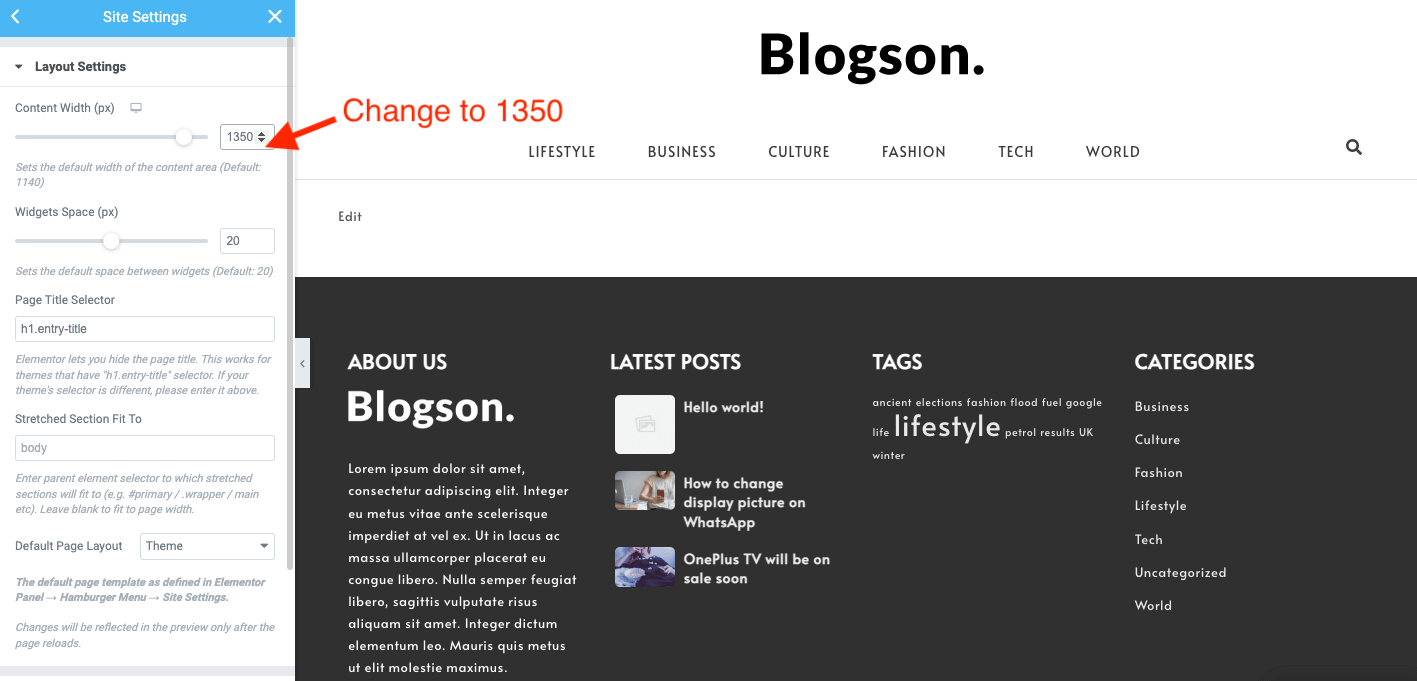
Step 4) After the demo import, open Home page with Elementor page builder and change the layout content width from 1140 to 1350px
Getting Started With Blogson
After installling the theme, just click on the Get Started with Blogson button and follow the instructions.
How To Change Blogson page width (default 1140px) [* IMPORTANT ]
Step 1) Go to Pages -> All Pages and click on Edit with Elementor Link as shown in the screenshot below
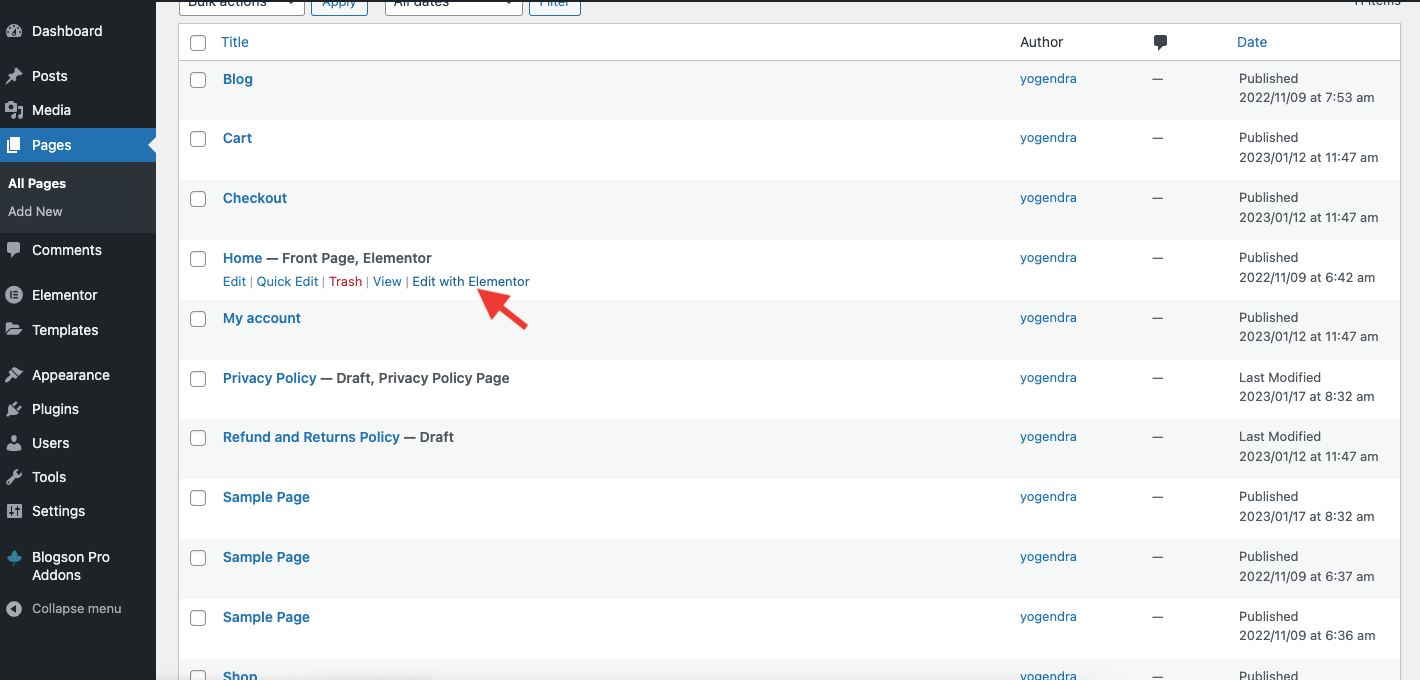
Step 2) Click on the top left icon
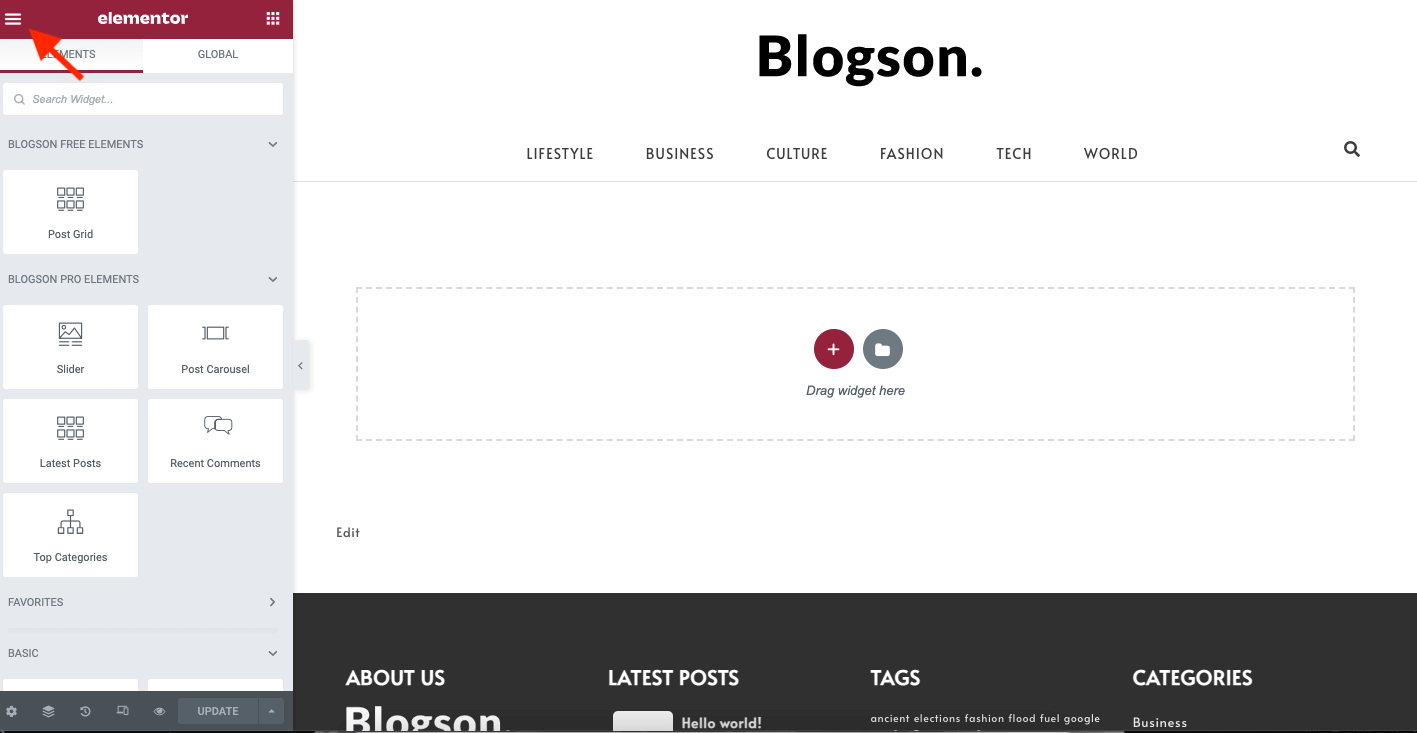
Step 3) Click Site Settings
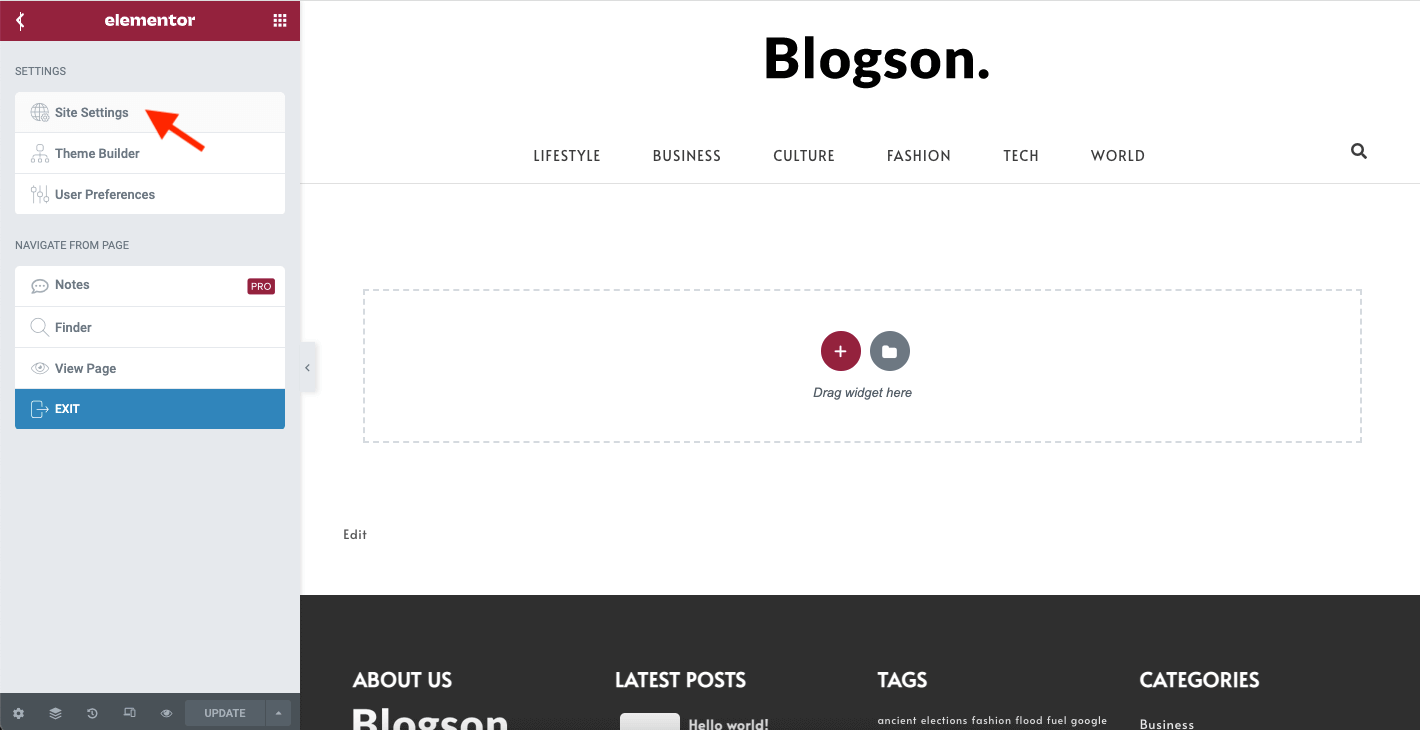
Step 4) Click Layout
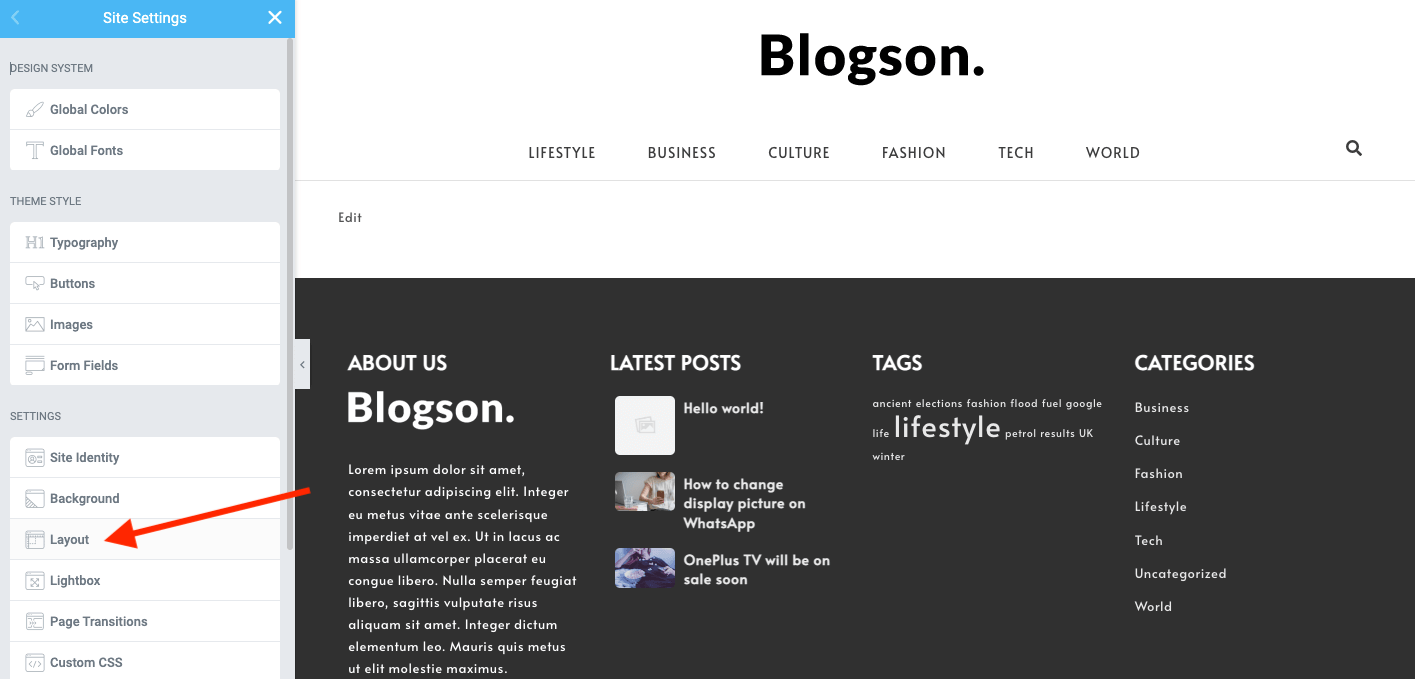
Step 5) Now enter 1350 in place of 1140 and save
How To Change Logo
Step 1) Go to Appearance->Customize
Step 2) Click on Site Identity Tab.
Step 3) Upload a logo of your own.
Step 4) Save & Publish
How To Add Menu
Go to Menus from Appearance-> Menus.
Step 1) Create a new menu.
Step 2) Select pages from left and add it to menu
Step 3) After this Select Theme Locations Primary from bottom and click Save Menu
How To Add Copyrights Text
Step 1) Click on Appearance -> Customize -> Footer Settings
Step 2) Scroll down to Footer copyrights text
Step 3) Enter your content
Step 4) Save & Publish
How To Add A Preloader For My Site
Step 1) Click on Appearance -> Customize -> Preloader Settings
Step 2) Choose your settings
Step 3) Save & Publish
List of Available Social Icons
1) Twitter
Link Text: twitter.com
2) Facebook
Link Text: facebook.com
3) Github
Link Text: github.com
4) Linkedin
Link Text: linkedin.com
5) Instagram
Link Text: instagram.com
6) YouTube
Link Text: youtube.com
7) Behance
Link Text: behance.net
8) PInterest
Link Text: pinterest.com
How to change/ Add Blog Settings
Step 1) Go to Appearance -> Customize -> Blog Settings
Step 2) Choose settings and publish
Font Awesome Icons display issue while using other plugins
Step 1) Go to Appearance -> Customize -> Additonal CSS
Step 2) Paste this CSS
.fa, .fas {
font-family: FontAwesome;
}
Step 3) Save & Publish
What to do after BLOGSON PRO ADDONS purchase [PRO]
After your purchase you’ll receive an email regarding your purchase confirmation. You’ll also get the link for downloading the pro zip file and the license key. Once you get the zip file follow the steps below
Step 1) Go to Plugins -> Add New and then upload the zip file
Step 2) After upload install and activate the plugin. Upon activation it will ask for the license key, copy the license key from the email and paste it on the text field.
Step 3) Make sure you have the plugin Spiraclethemes Site Library installed and activated ( recommended plugin)
Step 4) Now you have 2 options ie Go for PRO demo import option or continue using the plugin without demo import. You’ll see new PRO options in the customizer. Change it accordingly.
For Demo import: Go to Appearance -> Import Demo Data and choose the demo
How to switch from Light mode to Dark mode [PRO]
Step 1) Go to Appearance -> Customize -> Theme Style Settings (pro)
Step 2) Choose Dark Mode from the option
Step 3) Save & Publish
How to change Menu and Body colors [PRO]
Step 1) Go to Appearance -> Customize -> Color Settings (pro)
Step 2) You’ll see the list of sections to choose and set colors. Customize the color and Save
How to add Author section in Single Post [PRO]
Step 1) Go to Appearance -> Customize -> Blog Settings (pro)
Step 2) Enable Show Author Section and save
How to enable Sticky Header [PRO]
Step 1) Go to Appearance -> Customize -> Sticky Header Settings (pro)
Step 2) Enable Show Sticky Header and save
How to remove footer credits [PRO]
Step 1) Go to Appearance -> Customize -> Footer Settings
Step 2) Add your own copyrights text. Don’t leave blank.
Step 3) Go to Appearance -> Customize -> Footer Settings (pro) and disable Show Credit Link option
How to add Slider / Post Carousel [PRO]
First of all open your page with Elementor page builder. Now on the left panel you’ll see BlOGSON PRO ADDONS block which have some PRO element widgets. Just drag and drop into the section where you want.
How to add widgets in Footer [PRO]
Step 1) Go to Appearance -> Customize -> Footer Settings (pro)
Step 2) Choose number of Footer Columns ie 1,2,3 or 4 columns footer.
Step 3) Now go to Appearance -> Widgets and put your widgets in the Footer Column1, Footer Column2, Footer Column3 or Footer Column4
Was this article helpful?