How To Setup Theme And How To Use 1 Click Demo Import
You can create your website like the preview demo in just a few steps
Step 1) Install the Plugin Navigate to Plugins > Add New in your WordPress dashboard. Click Upload Plugin, select the velour-pro-plugins.zip file, and click Install Now. Then, activate the plugin.
Step 2) Activate Your License Key Upon activation, you will be redirected to the license activation page. Check your email for the confirmation message containing your license key, paste it into the field, and click Activate.
Step 3) Install the Velour Theme Once the license is active, a dashboard notice will appear prompting you to install the core theme. Click the link to automatically install and activate the Velour theme.
Step 4) Launch the Setup Wizard After the theme is activated, a popup notice reading “Get Started with Velour theme” will appear. Click this button to be automatically redirected to the demo import page.
Step 5) Import the Demo Content Click the start button to begin the demo import process and wait for it to complete. Once finished, you can visit your front-end to see your live, fully configured website.
How To Continue if “Get Started with” button not working (* Important)
If somehow the button is not working and it does not redirect to the demo import page then follow the steps below
Step 1) After installing and activating the plugin & theme. Then go to Velour Pro Addons -> Demo Import.
Step 2) Select your demo. Click on Import Demo button. A new window will open and wait for the process to finish.
Getting Started With Velour Pro (Manual)
Step 1) Create new pages from Pages menu and name it Home for home page and Blog for blog page
Step 2) Go to Settings->Reading menu and from Your homepage displayssettings select A static page and then select Home as Front page and Blog as blog page
Step 3) Save it
Step 4) Now edit your home page using Elementor Page builder easily.
How To Set Page Width in Elementor (* Important)
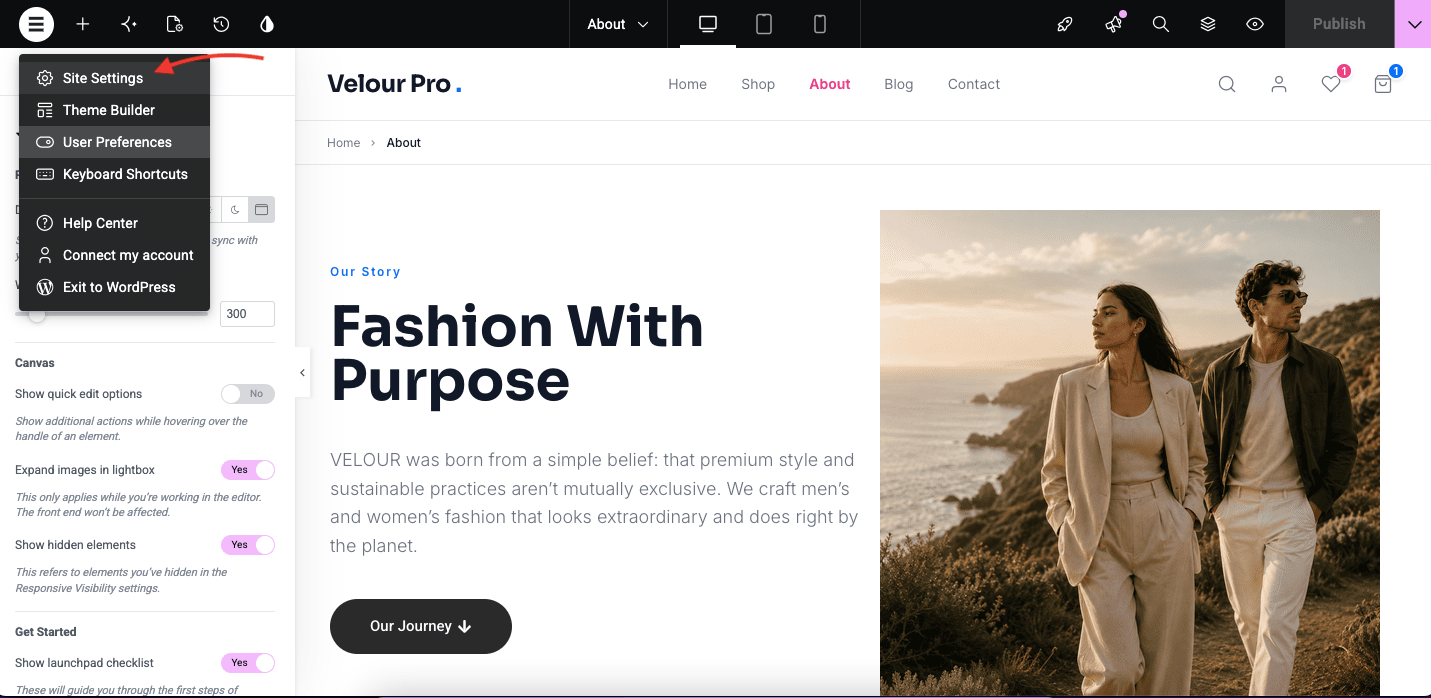
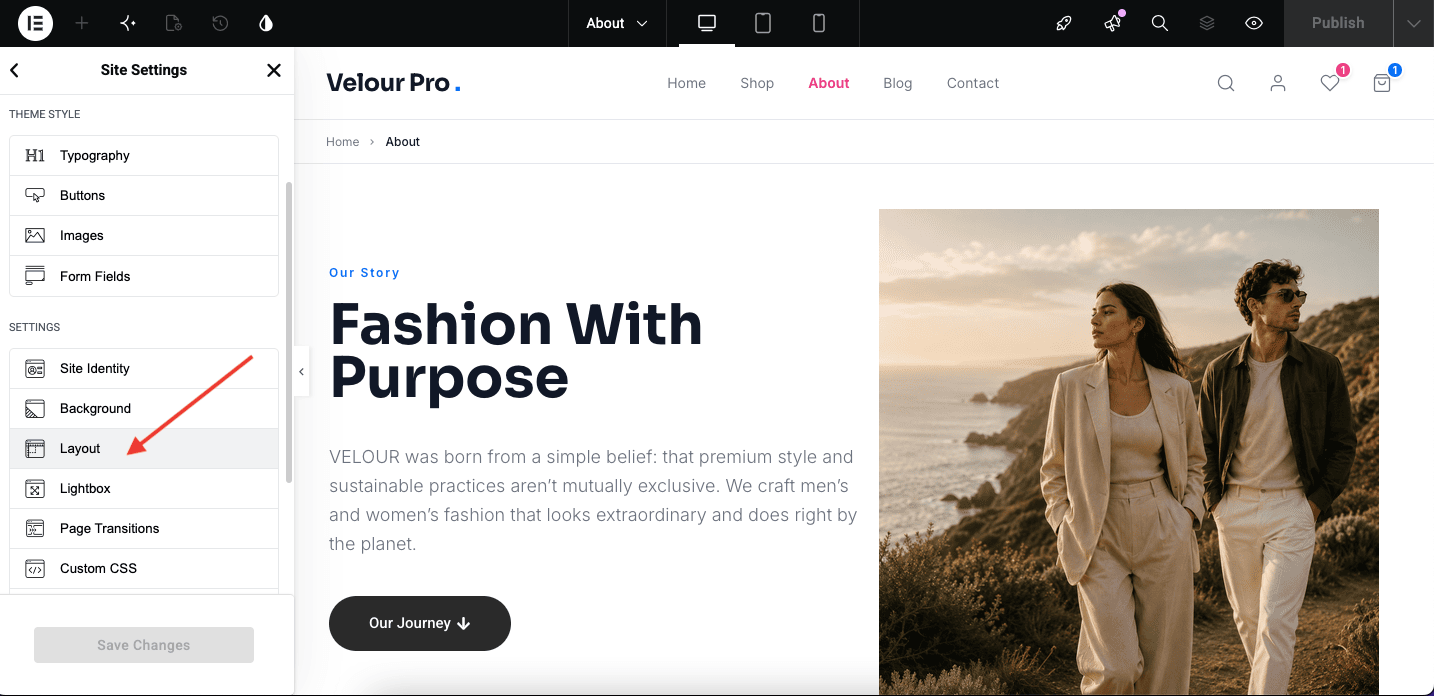
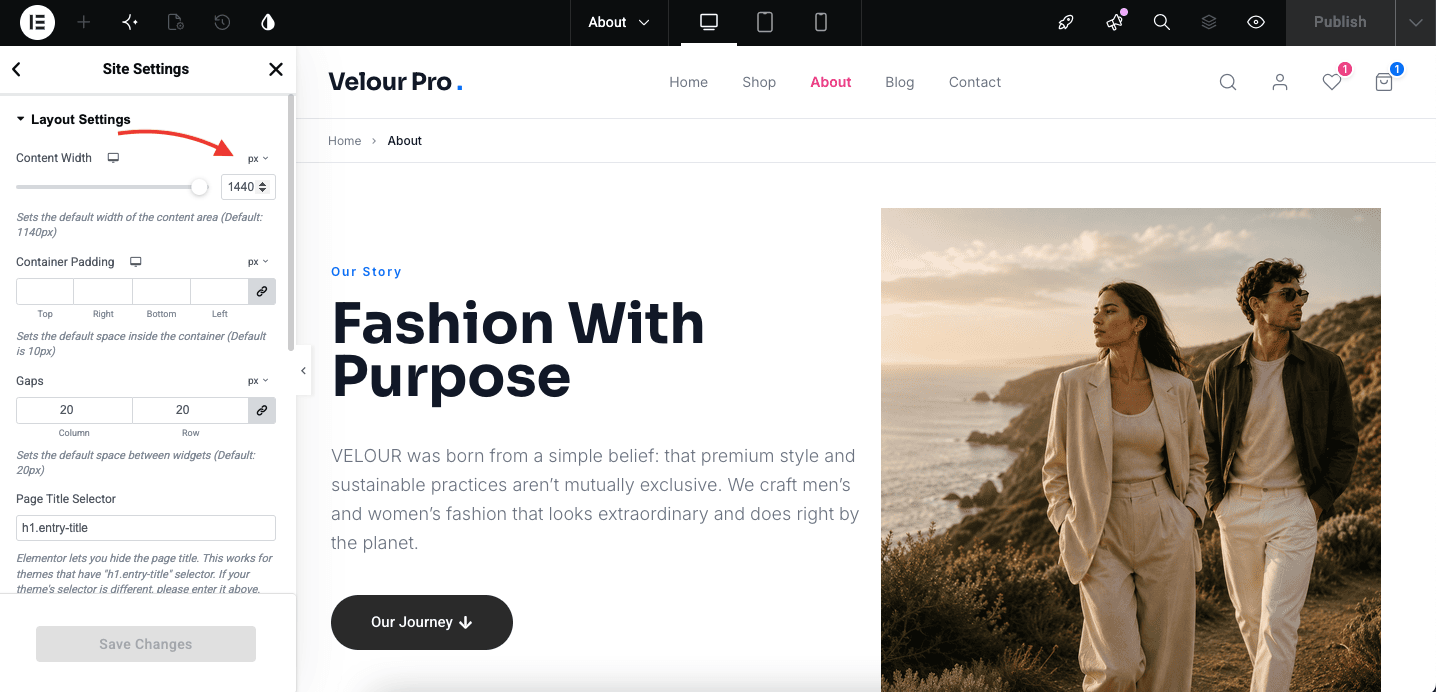
Default width is 1440px. After you install and activate Velour Pro. You’ll notice that the Elementor’s content is taking the 1170px width and not 1440px width. To change the Elementor’s page width. We need to add the following steps. Check images below
Follow the Steps show in Screenshot below. First of all Open your homepage using Elementor Page Builder. Click on the 3 bars on top left first
How to Change Logo
Step 1) Go to Appearance->Customize
Step 2) Click on Site Identity Tab.
Step 3) Upload a logo of your own.
Step 4) Save & Publish
How to Add Menu
Go to Menus from Appearance-> Menus.
Step 1) Create a new menu.
Step 2) Select pages from left and add it to menu
Step 3) After this Select Theme Locations Primary from bottom and click Save Menu
How To Edit / Create Page With ELEMENTOR Page Builder?
Step 1) Go to Pages->Add New
Step 2) Enter Page Title for eg About
Step 3) Click on the blue button Edit with Elementor
How To Add Contact Form Shown In Demo
Step 1) Click on Contact -> Add New
Step 2) Create your new form
Step 3) Copy the shortcode
Step 4) Paste your shortcode using Text Widget or Shortcode widget
Step 5) Save & Publish.
How To Add Copyrights Text
Step 1) Click on Appearance -> Customize -> Footer Settings
Step 2) Scroll down to Footer copyrights text
Step 3) Enter your content
Step 4) Save & Publish
How to Show Products in a page
Step 1) Open you page with Elementor Page builder.
Step 2) Choose any widgets from Flash sale, Products grid, As featured in, Just landed etc and drop into the section
Step 3) Save & Publish.
How to Add Footer Widgets
Step 1) Click on Appearance -> Widgets
Step 2) You can choose from Velour Footer About Widget and Velour Footer Nav Menu widgets and drag the widgets to any of the Footer Columns
Step 3) Save
How to Add Top Bar
Step 1) Go to Appearance -> Widget and search for Velour: Announcement Bar and drop it to the Top Bar Sidebar
Step 2) Customize the settings there and fill info
Step 3) Save
Where to find the theme’s WooCommerce options
Go to Appearance -> Customize -> WooCommerce and from the options you can change the products display, WooCommerce sidebar etc.
Was this article helpful?
Thank you for your feedback!