How to use 1 Click Demo Import to import the demo content
You can create your website like the preview demo in just a few steps
Step 1) First of all install this theme by going to Appearance->Themes->Add New. Upload LawFiz-One.zip and install it.
Step 2) You’ll see a welcome screen upon activation. Click on the button Get Started with Law Fiz. It will automatically redirect you to the demo import page.
Step 3) Select your demo. Click on Import Demo button. A new window will open along with the required plugins. Click the Continue & Import button to continue and wait for the process to finish.
Getting Started With LawFiz One ( No Demo Content)
1) First of all, set your page (Let’s say your page name is home ) to Frontpage. To do this go to Settings -> Reading and then select your homepage as a static page and choose your page ( ie home) on the homepage dropdown and choose Blog as Posts page. After that Save the changes.
How To Change Logo
Step 1) Go to Appearance->Customize
Step 2) Click on Site Identity Tab.
Step 3) Upload a logo of your own.
Step 4) Save & Publish
How To Add Menu
Go to Menus from Appearance-> Menus.
Step 1) Create a new menu.
Step 2) Select pages from left and add it to menu
Step 3) After this Select Theme Locations Primary from bottom and click Save Menu
How To Add Copyrights Text
Step 1) Click on Appearance -> Customize -> Footer Settings
Step 2) Scroll down to Footer copyrights text
Step 3) Enter your content
Step 4) Save & Publish
How To Add A Preloader For My Site
Step 1) Click on Appearance -> Customize -> Preloader Settings
Step 2) Choose your settings
Step 3) Save & Publish
How to change/ Add Blog Settings
Step 1) Go to Appearance -> Customize -> Blog Settings
Step 2) Choose settings and publish
How To Edit / Create Page With ELEMENTOR Page Builder?
Step 1) Go to Pages->Add New
Step 2) Enter Page Title for eg About
Step 3) Click on the blue button Edit with Elementor
Note: You’ll need Elementor Page Builder plugin to do this.
How To Add Transparent/Normal Header Layout ?
Step 1) Go to Appearance->Customize->Header Settings -> Header Styles
Step 2) Choose the Transparent Setting.
Step 3) Save & Publish.
How To Add Contact Form
Step 1) Click on Contact -> Add New
Step 2) Create your new form or you can use our form
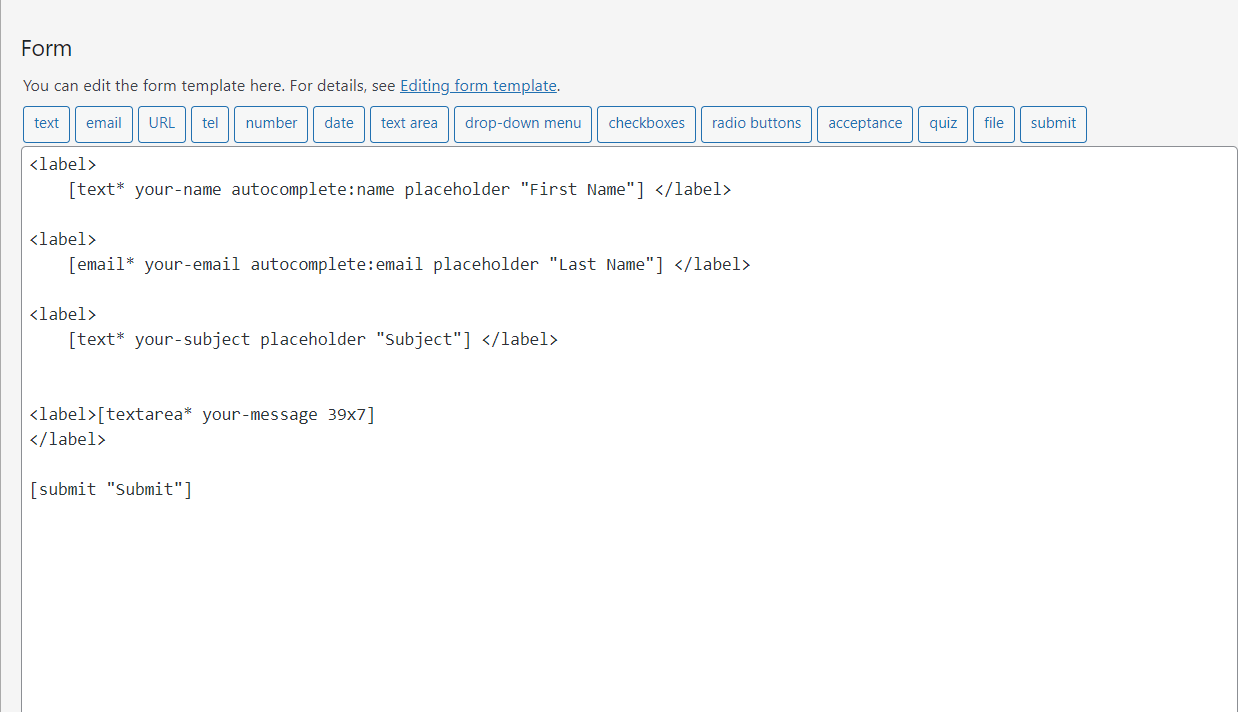
Step 3) Copy the shortcode
Step 4) Open your page
Step 5) Add this shortcode using Elementor Shortcode Widget
Step 6) Save
Note: You’ll need Contact Form 7 plugin to do this.
How To Add/ Change Page Settings
Step 1) Click on Appearance -> Customize -> Page Settings
Step 2) Enable Page Title Section to show page title
Step 3) Enable Breadcrumb Type
Step 4) choose Background Type to image / color
Step 5) Enable / Disable Dark Overlay to show a dark overlay over page header background
Step 6) Adjust page title height settings
Step 7) Save & Publish
Note: 1) For NavXT Breadcrumb You’ll need Breadcrumb NavXT plugin to do this.
2) For YOAST Breadcrumb You’ll need YOAST Seo plugin to do this.
How to change color settings
Step 1) Click on Appearance -> Customize -> Color Settings
Step 2) select the desired Color Option from given settings
Step 3) Save & Publish
How to make Last Menu Item as Button
Step 1) Click on Appearance -> Customize -> Header Settings -> Header Menu
Step 2) Enable Menu Last Button option
Step 3) Save & Publish
Was this article helpful?
Thank you for your feedback!