
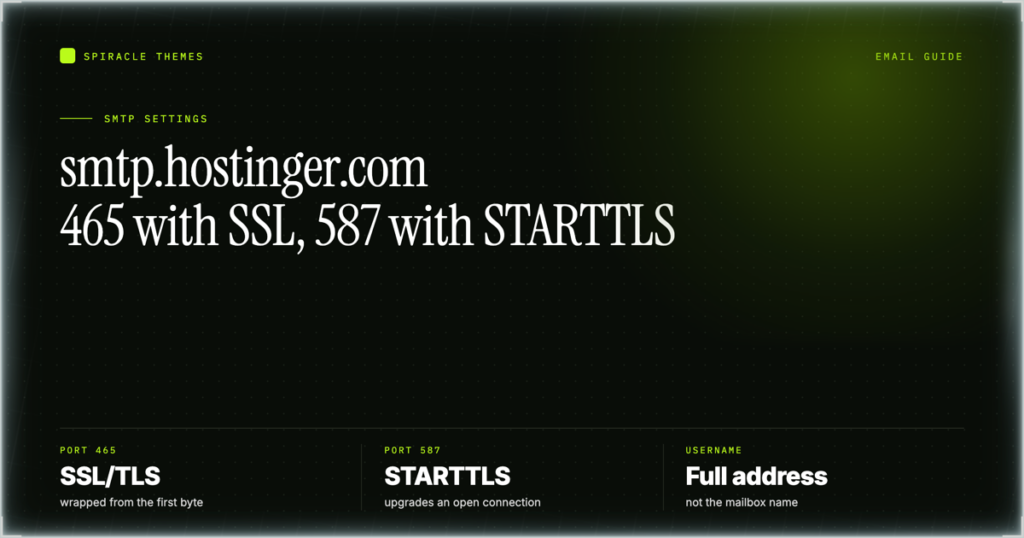
The outgoing server for a Hostinger mailbox is smtp.hostinger.com, on port 465 with SSL, or port 587 with TLS/STARTTLS when a client will not accept 465. The username is the full email address and the password is the mailbox password, not the password you use to sign in to hPanel. Those values do not change between Outlook, Apple Mail, Thunderbird and WordPress: only the screens that ask for them change. What follows is the configuration path for each of those four, using the values Hostinger publishes, checked 10 November 2026.
Hostinger SMTP settings for one mailbox
Every field a mail client asks for maps to one of these rows. If a setup screen offers fewer fields than this table has rows, the missing ones are being derived from the port number, and you can leave them alone.
| Field | Value |
|---|---|
| Outgoing server (SMTP host) | smtp.hostinger.com |
| SMTP port with SSL | 465 |
| SMTP port with TLS / STARTTLS | 587 |
| Username | The full email address, for example [email protected] |
| Password | The mailbox password set in hPanel, not the hPanel account password |
| Authentication | Required, using the same username and password as above |
Port 465 and port 587 reach the same server; they differ only in when encryption starts. On 465 the connection is encrypted from the first byte, which is why clients label it SSL or SSL/TLS. On 587 the connection starts in plain text and is upgraded by a STARTTLS command, which is why clients label it STARTTLS or TLS. A client that offers a single “SSL/TLS” toggle wants 465 with the toggle on.
Try it yourself: check the current Hostinger hosting plans — Premium is $1.99/mo on a 48-month term ($95.52 up front, renews at $10.99/mo), and every hosting plan carries a 30-day money-back guarantee.
Where Hostinger shows the values
You do not have to remember the table. In hPanel, open Emails, click Manage next to the domain, then open Connect Apps & Devices. That panel lists the incoming and outgoing servers for the mailbox you selected, along with the port and encryption pair for each protocol. Hostinger documents the same values in its email configuration article, which is worth opening if the mailbox was created by someone else and you are not certain which service is holding it.
Two things are worth knowing before you start typing. First, Hostinger’s mail servers support POP3, IMAP and SMTP with all three enabled by default, so a client that reports “server does not support SMTP” is almost always pointed at the wrong hostname rather than at a disabled protocol. Second, webmail is a separate destination at mail.hostinger.com, and it is the quickest way to confirm a mailbox password is correct before you blame the mail client.
Setting up Outlook
- Open the account settings dialog and choose to add a new email account, then pick the manual or advanced option rather than the automatic one. Automatic discovery asks the domain for its autodiscover record, which is a DNS question rather than an email question.
- Choose the account type. IMAP keeps the mailbox in sync across devices; POP3 downloads it.
- For incoming, enter
imap.hostinger.comon port 993 with SSL, orpop.hostinger.comon port 995 with SSL. - For outgoing, enter
smtp.hostinger.comon port 465 with SSL. If Outlook refuses 465, use 587 with STARTTLS. - Enter the full email address as the username for both incoming and outgoing, and the mailbox password as the password for both.
- Tick the option that requires authentication for the outgoing server, and confirm it is set to use the same credentials as the incoming server.
- Send a message to a mailbox on a different provider and ask for a reply. A send that succeeds into your own domain only proves the local delivery path.
Setting up Apple Mail
- Choose to add an account, select “Other Mail Account”, then choose manual configuration when the automatic attempt fails.
- Enter the full email address and the mailbox password, then fill in the incoming server as
imap.hostinger.comwith port 993 and SSL enabled. - Fill in the outgoing server as
smtp.hostinger.comwith port 465 and SSL enabled, and enter the same full email address as the username. - Save, then open the account’s server settings and confirm the outgoing server is not set to “None” and that “Automatically manage connection settings” is off, since that option can overwrite the port you entered.
- On iOS and iPadOS the same values apply, but the outgoing server settings are hidden behind a collapsed panel in the account screen. Expand it before saving, or the account will receive mail and fail to send it.
Setting up Thunderbird
- Add a new existing email account and enter the name, the full email address and the mailbox password. Thunderbird will try to look up a configuration; stop it and edit the fields directly.
- Set incoming to IMAP, host
imap.hostinger.com, port 993, connection security SSL/TLS, authentication “Normal password”. - Set outgoing to
smtp.hostinger.com, port 465, connection security SSL/TLS, authentication “Normal password”. - Enter the full email address in the username field for both, since Thunderbird defaults the outgoing username to the incoming one only when you leave it empty.
- After the account is created, open the outgoing server list from the account settings and confirm there is one entry, not two. A duplicate entry from a failed first attempt is the usual reason a message queues instead of sending.
Setting up WordPress
WordPress sends its own mail through the server’s PHP mail function, which is not an authenticated SMTP connection and is the reason password resets and form notifications go missing. Install an SMTP plugin and point it at the mailbox. WP Mail SMTP and Easy WP SMTP both ask for the same five things, under slightly different labels.
| Value needed | WP Mail SMTP label | Easy WP SMTP label |
|---|---|---|
| smtp.hostinger.com | SMTP Host | SMTP Host |
| 465 | SMTP Port | SMTP Port |
| SSL, or TLS for 587 | Encryption | Encryption |
| Full email address | SMTP Username | SMTP Username |
| Mailbox password | SMTP Password | SMTP Password |
Two settings in those plugins cause most of the failures. The “From Email” must be the mailbox you authenticated as, because a mismatch is rejected by the server rather than silently rewritten. And the “Force From Email” option should be on, so a plugin that tries to send as its own address is corrected instead of bouncing.
Contact Form 7 and other form plugins
Contact Form 7 has no SMTP fields of its own. It hands messages to WordPress’s mail function, so once WP Mail SMTP or Easy WP SMTP is configured, every form on the site inherits that connection. If forms still fail while a plugin test email succeeds, the problem is in the form’s mail template rather than in the SMTP values: an empty recipient field, or a “From” header built from a visitor-supplied address that the server will not accept. Keep the From header as your own mailbox and put the visitor’s address in Reply-To.
When the send fails
| Symptom | Likely cause | Fix |
|---|---|---|
| Connection times out on send | Port and encryption do not match | Use 465 with SSL, or 587 with TLS/STARTTLS, never 465 with STARTTLS |
| Server rejects the login | The hPanel account password was used instead of the mailbox password | Reset the mailbox password in the Emails section and re-enter it in the client |
| Login rejected only on outgoing | Username is a short name rather than the full address | Enter the complete email address, including the domain |
| Certificate warning on connect | Client is pointed at the domain’s own hostname instead of smtp.hostinger.com | Use the exact hostname from the table |
| Sends succeed but land in spam | From address does not match the authenticated mailbox | Align the From address with the mailbox and keep SPF and DKIM intact, described in the DNS records guide |
| 587 fails after the upgrade command | Client is set to SSL on 587 | Set encryption to STARTTLS or TLS, not SSL |
If the client has a “test connection” button, run it before saving. It exercises authentication separately from sending, which separates a credential problem from a port problem in one step. The full value set, with the meaning of each field and the errors caused by mixing service types, is on the SMTP details page.
One purchase note before you commit to a plan for email reasons: mailbox allowances are tied to the hosting tier, with 2 mailboxes per website free for a year on Premium and unlimited mailboxes per website free for a year on Business. If a client needs more than a couple of addresses, that difference matters more than the price gap.
Try it yourself: check the current Hostinger hosting plans — Premium is $1.99/mo on a 48-month term ($95.52 up front, renews at $10.99/mo), and every hosting plan carries a 30-day money-back guarantee.
Frequently asked questions
Should I use port 465 or port 587?
Use 465 with SSL first. It is the pair Hostinger documents as the primary outgoing setting, and it works in every client that supports implicit SSL. Switch to 587 with TLS/STARTTLS only when a client, a firewall or a network policy refuses 465. Do not mix the two: 465 with STARTTLS and 587 with SSL both fail, and both fail in ways that look like a wrong password.
Is the SMTP password the same as my Hostinger login?
No. The SMTP password is the password on the individual mailbox, created and reset in the Emails section of hPanel. The account password you use at hpanel.hostinger.com has no effect on mail authentication. If you have just changed the hosting account password and mail stopped working, nothing about that change should have touched the mailbox, so look at the client configuration instead of resetting credentials.
Why does WordPress still not send after I configure the plugin?
Check the plugin’s own test email first, then check the From address. A test that succeeds while forms fail means the form template is at fault; a test that fails means the values are. Also confirm the plugin is actually active and that no second SMTP plugin is installed, since two plugins competing for the same mail hook produce intermittent results that are hard to attribute.
Where do I find the incoming server values?
The same panel that holds the outgoing values: Emails, Manage next to the domain, Connect Apps & Devices. IMAP is imap.hostinger.com on port 993 with SSL, and POP3 is pop.hostinger.com on port 995 with SSL. The IMAP settings guide covers the incoming side, including what changes if you choose POP3.
Can I use these values for a mailbox on a different host?
No. These are Hostinger’s servers, and they authenticate only Hostinger mailboxes. If the domain’s mail is held by Titan Email or by a legacy cPanel account, the hostnames and ports come from that service instead, and mixing the two sets produces authentication failures that look like a broken mailbox. Confirm which service holds the domain in the Emails section before you configure anything.
Does SMTP work from a different network?
Yes, the settings are not tied to your location or to the hosting server your site runs on. What can change is whether the network you are on permits the port. A hotel, office or campus network that blocks outgoing mail ports will time out on 465 and often on 587 as well; in that case test from a mobile hotspot to confirm the configuration is correct before changing it.
Get one mailbox working end to end before you replicate the settings to a team, and keep the exact hostname, port and encryption written down next to the mailbox name. When a send fails months later, the fastest check is comparing the client against that note rather than working backwards from the error message.
