
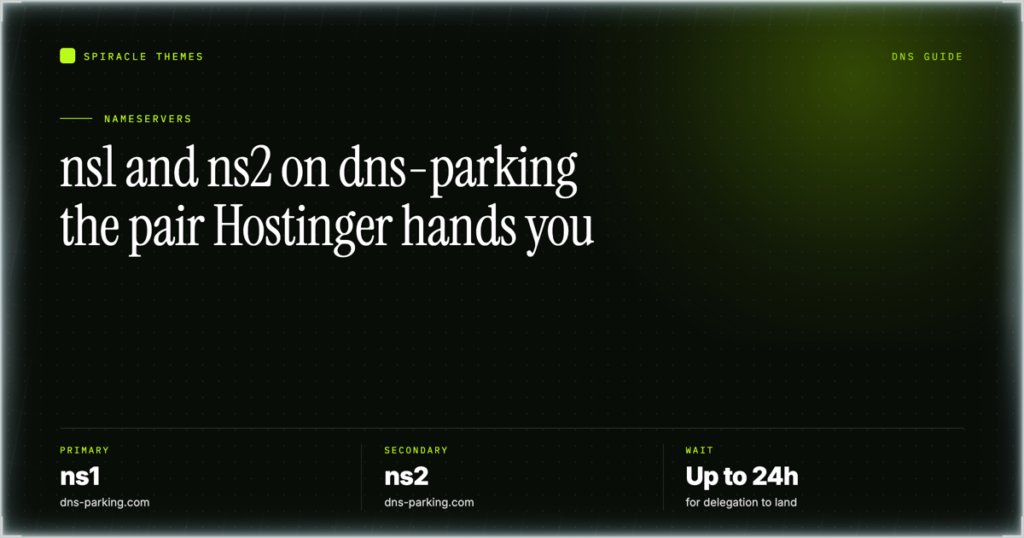
Hostinger’s nameservers are ns1.dns-parking.com and ns2.dns-parking.com. Those two hostnames are what you enter at a registrar when you want a domain to use Hostinger’s DNS. Hostinger also runs ns3.dns-parking.com and ns4.dns-parking.com, which resolve to the same pair, so a registrar that insists on four entries can be filled in completely. The one thing to check before you type them anywhere: Hostinger’s own documentation now says the values differ by hosting type and domain, and that you should copy the exact pair shown in your dashboard rather than a pair from any guide, this one included. This article covers where each plan type shows them, how to change them at an outside registrar, and what breaks when the change lands wrong.
The values, and what they actually point at
The dns-parking.com pair is the set Hostinger has used for years, and both hostnames were resolving on 10 November 2026: ns1 to 162.159.24.201 and ns2 to 162.159.25.42.
| Nameserver | Role | Note |
|---|---|---|
ns1.dns-parking.com |
Primary | First value to enter at a registrar. |
ns2.dns-parking.com |
Secondary | Second value. Never enter only one. |
ns3.dns-parking.com |
Extra | Resolves to the same pair. Use when a registrar asks for three or four. |
ns4.dns-parking.com |
Extra | Same as above. |
Two nameservers are the minimum for a working zone, because a resolver that cannot reach the first one tries the second. Entering a single nameserver is legal at most registrars and is a bad idea in practice: when that one host is unreachable, the domain stops resolving entirely. Always fill in at least ns1 and ns2.
Check the plans first: see what the current Hostinger hosting plans include — Premium is $1.99/mo on a 48-month term ($95.52 up front, renews at $10.99/mo), and every hosting plan carries a 30-day money-back guarantee.
Why you should read the pair off your dashboard
It would be simpler if one pair covered every account. It does not, and Hostinger’s knowledge base says so directly: the nameservers differ by hosting type and by domain, and the dashboard is the authority. The practical reason is that Hostinger runs more than one DNS back end. Shared, cloud and Agency hosting, VPS plans and leftover cPanel accounts are not all served the same way, and a domain connected during an older migration may sit on a pair that is not the current default.
The consequence is simple. Copy the values from your own hPanel, paste them at the registrar, and do not compare them to a blog post afterwards. If they match the pair above, fine. If they do not, the dashboard is right and the article is out of date.
Where each plan type shows the nameservers
The path differs by product, which is where most of the confusion comes from. All of these are the paths Hostinger documents.
| Plan type | Where the values are |
|---|---|
| Shared or Cloud hosting | Websites, hover the domain, Manage site, then Hosting plan and Plan Details. |
| Agency hosting | Plan Details, then the Nameservers card. |
| During domain connection | The site preview shows “Connect your domain within N days”. Open Connect and the nameservers for that domain are listed there. |
| VPS | VPS, Manage, then DNS Manager in the sidebar. The nameservers appear in the domain list. |
| Legacy cPanel | Dashboard home, Manage next to the cPanel plan, then scroll to Nameservers and IP address. |
The connection screen is the one to remember. When you add a domain to a plan that has no domain yet, Hostinger shows you the exact pair for that site in the same place it nags you to connect one, so you never have to hunt through plan details while a countdown is running.
Changing nameservers at an external registrar
The registrar holds the delegation, so the change happens there, not in hPanel. The wording differs between registrars but the shape is the same everywhere.
- Sign in at the registrar that holds the domain, not at Hostinger.
- Open the domain’s settings and find the nameserver or DNS section. Registrars label it “Nameservers”, “DNS servers” or “Manage DNS”.
- Switch from the registrar’s default nameservers to custom ones. Some registrars call this “Use your own nameservers” or “I’ll use my own”.
- Delete the existing entries rather than adding alongside them. A registrar that keeps its own pair in the list will keep answering for the domain.
- Enter
ns1.dns-parking.comandns2.dns-parking.comexactly as shown in your dashboard, with nowwwand no trailing dot. - Save, then wait. Hostinger documents the propagation wait as up to 24 hours.
Changing nameservers is not the same as editing records. The moment the new delegation takes effect, every record in the old zone stops being authoritative: mail routing, verification TXT values, subdomains, everything. If the domain has email at another provider, either recreate the MX and SPF records in Hostinger’s zone before the change, or keep the DNS where it is and edit records instead. The GoDaddy to Hostinger walkthrough lays out both routes for that exact case.
DNSSEC deserves its own line. If the domain has DNSSEC enabled at the registrar, turn it off before you switch nameservers. A signed zone that no longer matches the delegation fails to resolve, and the symptom looks like a total outage rather than a DNS mismatch.
How long the switch takes to land
Up to 24 hours. The delegation itself usually moves faster than that at the registry, but resolvers around the world cache the old answer until their TTL expires, so two people checking the same domain at the same minute can legitimately see different results. Check with a public DNS lookup from a couple of locations before you conclude anything is broken.
One thing that surprises people: the old zone keeps answering for a while after the change, because the old nameservers are still in caches. That is why an email sent shortly after a nameserver move can still route through the previous provider. It is not a bug and there is nothing to fix. If a domain fails to resolve long after the 24-hour window and other domains on the same account are fine, check statuspage.hostinger.com for an open DNS incident before you start editing records again.
Why a temporary domain shows no nameservers
Hostinger AI Builder sites and other temporary domains do not display nameservers, because their DNS cannot be managed directly. There is no zone to delegate yet, so there is no pair to show. Nothing is broken and no setting is missing. Connect a real domain to the site first, and the nameservers appear once there is a domain whose delegation can actually be pointed somewhere.
This trips people up when they build a site on a temporary address, decide it is good, and then look for the nameservers to give their registrar. The answer is to add the real domain to the plan, which is where the values come from.
The subdomain limitation
On a Hostinger-registered domain, you cannot set custom nameservers for a subdomain. Only the main domain can be delegated. A subdomain has to be served from the parent zone using an A, CNAME or TXT record instead.
Practically, this means you cannot hand shop.example.com to a third-party DNS provider by giving it its own NS rows. You point it at the provider’s target with a CNAME, or at a specific address with an A record. Both are done in the DNS records tab of the parent domain, and the record reference covers which to pick. If a vendor’s setup instructions tell you to add NS records for a subdomain, that step cannot be completed here, and the vendor’s alternative CNAME or A record method is the one to use.
When to leave the nameservers alone
Do not move the delegation if the domain’s email is hosted somewhere else and you are not ready to recreate the mail records. Do not move it if a third-party service has already verified the domain with TXT records at the current provider and you have no copy of those values. And do not move it in the same week as a site launch, because you will not be able to tell a DNS problem from a launch problem.
Editing records at the current provider is the smaller change and it is often enough. Moving the delegation is the bigger, cleaner change: one switch, one zone, everything managed in one place. The hPanel DNS editor guide covers the record-by-record route, which is what you want when only one thing needs to change.
If you are starting from scratch: compare Hostinger’s hosting tiers — a plan that includes a free domain for the first year also sets the nameservers for you, so there is nothing to paste at a registrar at all.
Frequently asked questions
Are ns1 and ns2.dns-parking.com still the current values?
They were resolving on 10 November 2026 and remain the pair Hostinger documents. Because Hostinger states that values differ by hosting type and domain, treat the dashboard as the source and this pair as the expected default. If your hPanel shows something else, use what it shows.
Can I use Hostinger’s nameservers for a domain registered elsewhere?
Yes. That is the normal way to host a domain bought at another registrar. You change the delegation at that registrar to the dns-parking pair, and the domain then appears in Hostinger’s DNS area under External domains. Hostinger can manage the records from that point on.
What happens to my email when I change nameservers?
Mail follows the MX records in whichever zone is authoritative. Once the new delegation takes effect, the old provider’s MX records are ignored. If mail should stay where it is, recreate the same MX, SPF and DKIM values in the Hostinger zone before the change, or leave the DNS at the current provider.
Why does my domain still show the old nameservers after a day?
Either the registrar did not save the change, the registrar kept its own pair alongside the custom ones, or the registry is still propagating. Check the delegation with a public whois lookup first. If the registry already shows the new pair, the remaining delay is caching and nothing else.
Do I need to change nameservers to add a subdomain?
No. Subdomains are added as records inside the existing zone, using an A, CNAME or TXT row. The nameservers only decide who is authoritative for the domain as a whole, so adding a subdomain never requires touching the delegation. On a Hostinger domain you cannot delegate a subdomain separately anyway, which is why the record route is the only one available.
Read the pair off your own dashboard and paste it exactly, because the values do change between plan types and Hostinger’s knowledge base carries the current paths for each product. That one habit avoids almost every problem described here. If the domain has email anywhere, plan the MX move before you touch the delegation, not after.
