

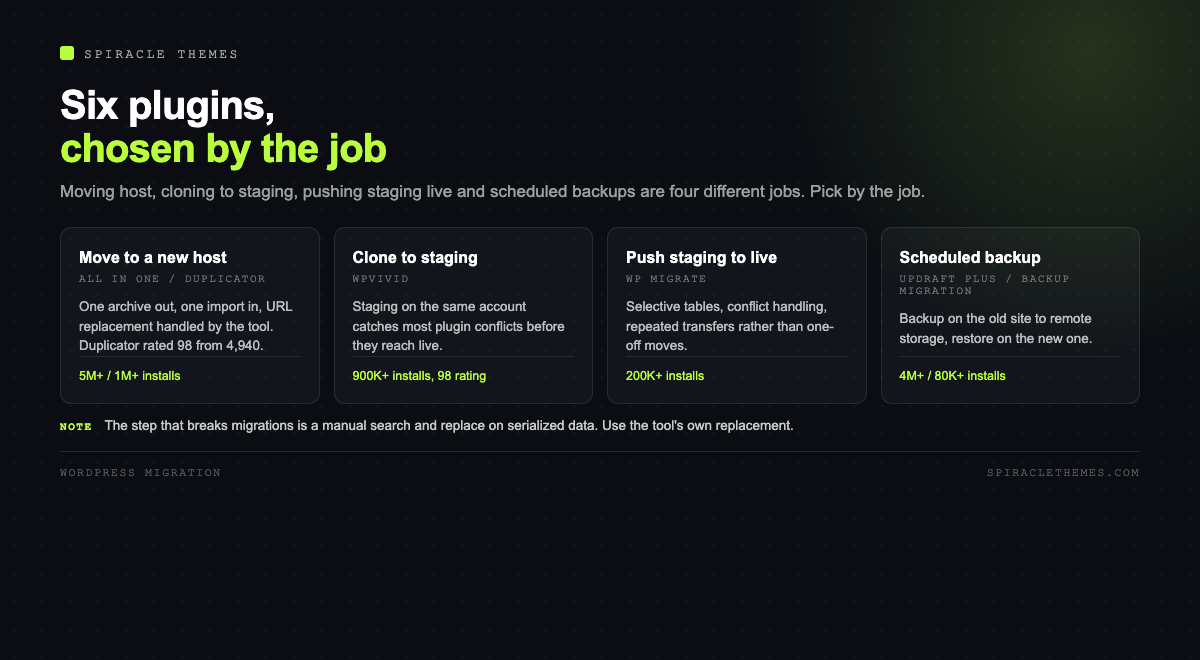
There is no single best WordPress migration plugin, because “migrate” covers four different jobs: moving a site to a new host, cloning it to staging, pushing staging to live, and exporting a backup you can restore somewhere else. Pick the plugin by the job and the list of six becomes obvious.
Start with the job, not the plugin
| Job | What it needs | Best fit |
|---|---|---|
| Move to a new host | Full package, URL replacement, no source access needed | Duplicator, All in One WP Migration |
| Clone to staging | Copy without touching the live site, own login | WPvivid, Duplicator |
| Push staging to live | Selective tables, conflict handling | WP Migrate |
| Scheduled backup and restore | Remote storage, retention, granular restore | UpdraftPlus, Backup Migration |
The six, with current numbers
| Plugin | Installs | Rating | Version | Strength |
|---|---|---|---|---|
| All in One WP Migration | 5M+ | 90 (7,676) | 7.113 | One file out, one file in, no server access needed |
| UpdraftPlus | 4M+ | 96 (8,708) | 1.26.14 | Scheduled backups plus restore during a move |
| Duplicator | 1M+ | 98 (4,940) | 5.1.0 | Reliable packages for host-to-host moves and clones |
| WPvivid | 900K+ | 98 (1,568) | 0.9.139 | Backups and staging in one plugin |
| WP Migrate | 200K+ | 84 (318) | 2.7.12 | Developer workflow: push and pull with selective tables |
| Backup Migration | 80K+ | 98 (1,338) | 2.1.7 | Restore-first design, large databases |
Install counts and ratings come from the WordPress.org directory and change over time. Two things the numbers do tell you: the most installed plugin is not the highest rated, and the older, heavier plugins carry a much wider compatibility surface, which is both their strength and their failure mode.
1. All in One WP Migration
The simplest mental model of the six: it writes your entire site into a single file, and another install reads it. There is no FTP, no database import, no search-replace step. That is why it has five million installs.
The constraints matter. Import size is limited by the destination host’s PHP upload limit, so a large site often needs the archive split or a paid extension. The free version also does not do selective migration, so it moves everything including things you may not want on the new server.
2. UpdraftPlus
Primarily a backup plugin, and a good migration tool by accident: back up on the old site to a remote destination, install on the new site, restore from that destination. The advantage is that you already have a backup product in place afterwards, so the tool earns its keep twice.
Restores are granular, which is useful when a migration goes wrong in one table rather than everywhere. It is slower than a purpose-built packager on very large sites because it archives in parts.
3. Duplicator
The most consistent of the packagers in my experience, and the highest rated on this list at 98 across nearly five thousand reviews. It builds an installer package, you upload two files, and a browser wizard walks through the database import and URL replacement.
It handles serialized data properly, which is the detail that quietly breaks naive migrations. If a site uses page builders, serialized data is everywhere, and a bad search-replace corrupts it in ways that only show up on specific pages.
4. WPvivid
Backups plus a staging site you can create on the same server, which makes it the practical choice when the goal is “test the update before it goes live” rather than “move to a new host”. Staging on the same account is not a substitute for a separate environment, but it catches most plugin conflicts.
5. WP Migrate
The developer option: connect two sites with a secret key, then push or pull the database, the media library or specific tables. It is the tool that makes a staging workflow real rather than aspirational, and the one that handles “the client edited content on live while we were building on staging” without a manual merge.
Its rating is lower than the others, which reflects a smaller and more demanding audience rather than unreliability. It is also the only one on this list designed for repeated, selective transfers rather than one-off moves.
6. Backup Migration
A smaller plugin built around restoring, including on hosts where execution time is short. It is a reasonable choice when the destination is a cheap shared plan that times out on other plugins’ importers, and it is the least likely of the six to be blocked by a host’s PHP limits.
The step that breaks migrations: URL replacement
Every migration changes the site URL, and every reference to the old URL has to change with it: in the database, in serialized options, in page-builder content, in theme settings. A plain SQL search and replace on serialized data breaks string lengths and produces white screens or empty widgets.
The safe order, whatever plugin you use:
- Back up the source site, and verify the backup restores somewhere.
- Lower DNS TTL a day before the move, so the cutover propagates quickly.
- Build the destination on a temporary URL or hosts-file override, not on the live domain.
- Import, then run the plugin’s URL replacement, not a manual UPDATE query.
- Re-save permalinks, clear caches, regenerate thumbnails if the media library moved.
- Test: homepage, a deep page, a form submission, a login, and the checkout if there is one.
Post-migration checklist
- Search Console: the property already exists if the domain is unchanged; confirm the sitemap is reachable.
- Redirects: if any URL changed, each old path needs a 301 to the closest new page.
- Email: check that contact forms still send, which usually means checking SMTP settings, not the form plugin.
- Cron: scheduled tasks may still point at the old path; visit the site once to let WP-Cron re-register.
- Cache and CDN: purge both, or the old HTML will follow you to the new server.
- Staging: confirm the new host’s staging environment is set up before you need it.
Large sites: when the one-file approach stops working
Every packager has a ceiling, and it is usually the destination host rather than the plugin. Three limits appear in the same order on almost every failed migration:
| Limit | Symptom | Fix |
|---|---|---|
| Upload size (PHP) | Archive refuses to upload, or times out at 100 percent | Raise upload_max_filesize and post_max_size, or split the archive |
| Execution time | Import stalls and returns a 500 partway through | Raise max_execution_time, or use a plugin that resumes |
| Memory | Blank screen during the database step | Raise WP memory limit, or import tables in batches |
On managed hosts these values are often fixed, which is why the practical answer for a large site is a command line migration: dump, transfer, import, search-replace with WP-CLI, and no browser involved. It is less friendly and considerably more reliable above a gigabyte.
Testing after the move, in the order problems appear
- The homepage. If it loads but the layout is wrong, the theme’s settings did not survive the serialized data replacement.
- A deep page with images. Missing images usually means the uploads folder was excluded from the archive.
- The login. A login loop points at a cookie domain or a stale site URL in the options table.
- A form submission. Silent failures are usually SMTP configuration, not the form plugin.
- Permalinks. Re-save them once, even if nothing changed, which rebuilds the rewrite rules.
- Scheduled tasks. Load the site once so WP-Cron re-registers against the new path.
Do these on the temporary domain before DNS changes, so the cutover is a formality rather than a debugging session with live traffic watching.
What the destination host does to your migration
The plugin gets blamed for failures it did not cause. On a fresh hosting account, five settings decide whether an import succeeds, and none of them are visible inside WordPress:
| Setting | What breaks | Where it lives |
|---|---|---|
| upload_max_filesize | Archive stalls at 100 percent, or the import form rejects the file | php.ini or the host panel |
| post_max_size | Same symptom, with no error message at all | php.ini, must exceed the archive size |
| max_execution_time | 500 error partway through the database step | php.ini, or a resumable importer |
| Database privileges | Tables created but not written, or the import loop never ends | The database user, not WordPress |
| Disk quota | Import fails with plenty of space reported, because the archive plus the restored copy must fit at once | The hosting plan |
The practical sequence on a host you do not control: ask support for the PHP values before you start, then size the archive to fit under the smallest of them. If the archive cannot be shrunk, the answer is a command line import, which has no upload limit because it never goes through the browser.
Two more things worth checking the same day. Mail: a migrated site keeps the old SMTP settings, so form notifications either work by luck or fail silently for a week. Scheduled tasks: WP-Cron is triggered by traffic, so a low-traffic site can look broken after a move until the first visit fires the queue.
The three things that go wrong after a successful import
- Mixed content. The site loads over HTTPS but images are requested over HTTP, so the browser blocks them. This happens when only some tables were replaced, most often the options table where upload paths live.
- Duplicate content at both addresses. Both the old and new servers answer on the same domain for a while, and Google can index the one you are about to switch off. Keep a noindex on the temporary copy until cutover.
- Stale object cache. A host with Redis or Memcached serves the old site’s cached pages against the new database, and the site looks half-migrated until the cache is flushed.
None of these are migration plugin bugs, and all three are found within ten minutes by opening the site on a phone with a fresh browser profile instead of the one you have been testing in.
Related reading: a migration is only as good as the archive behind it, covered in how to back up a WordPress site, and the same planning applies to a platform change in Webflow to WordPress migration.
FAQ
Which is best for a first migration?
Duplicator or All in One WP Migration, because both remove the database step. Duplicator gives more visibility into what is happening; All in One is faster if the archive fits the destination host’s limits.
Can I migrate without a plugin?
Yes: export the database with mysqldump, archive wp-content, copy wp-config.php, import the database, then run a WP-CLI search-replace. It is the most reliable method if you are comfortable on the command line and the least forgiving if you are not.
Why did my site white-screen after migrating?
Almost always a URL mismatch in serialized data, or a missing table prefix. Check the config file’s prefix against the imported tables before assuming the migration failed.
Do these plugins handle multisite?
Some do, with varying support: Duplicator and UpdraftPlus have multisite paths, and the others vary by version and tier. Verify against the plugin’s current documentation rather than a tutorial from three years ago.
Is the free version enough?
For a single move of a normal-sized site, usually yes. Paid tiers earn their price on large archives, scheduled transfers, incremental migrations and multisite.
Pick the plugin that matches the job, run the URL replacement with the tool that built the package, and test the four pages that matter before you point DNS. Most migration disasters are the same disaster: a manual search and replace on serialized data, applied to a backup nobody verified.
