

A WordPress backup is three things stored together: the database, the uploads folder, and the configuration files. Miss any one of them and you have a partial backup that looks fine until the day you need it. The other half of the job, the half almost nobody does, is restoring it once before you need to.
This guide covers what a complete backup contains, how to schedule it, which plugins are worth installing in 2026, and the restore drill that separates a backup from a hope.
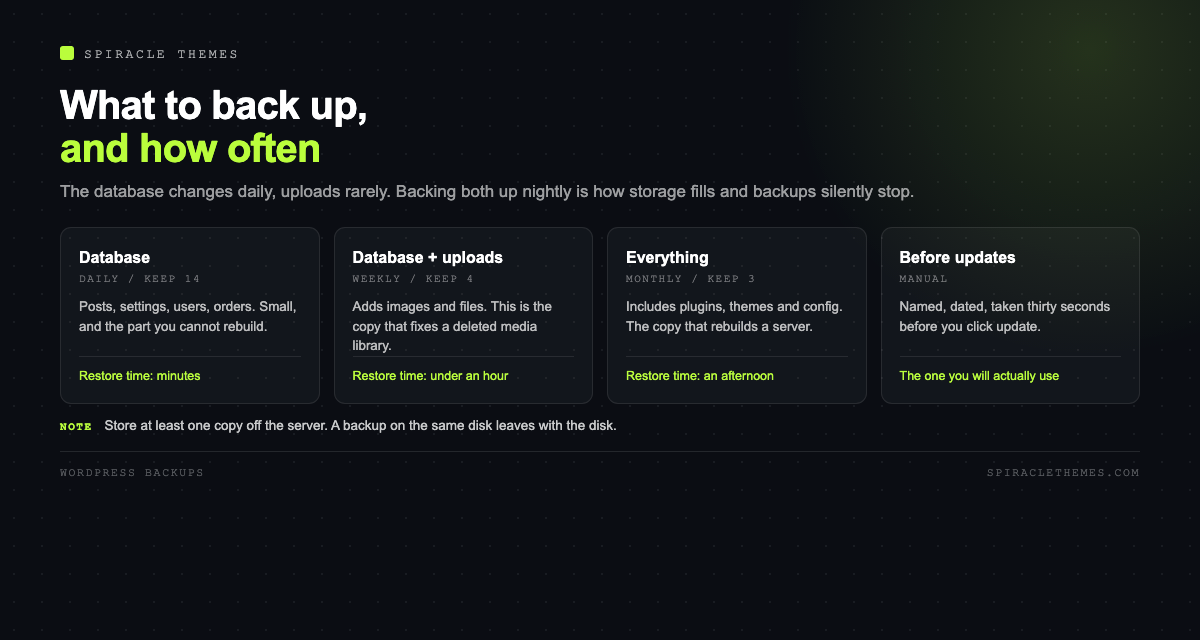
What has to be in the backup
| Part | Contains | What breaks without it |
|---|---|---|
| Database | Posts, pages, settings, users, menus, WooCommerce orders | Everything you wrote, and every setting |
| wp-content/uploads | Images, PDFs, videos, downloadable files | Every image reference becomes a broken link |
| wp-content/plugins and themes | Code, and any custom modifications | Functionality that no longer exists in the directory |
| wp-config.php and .htaccess | Database credentials, salts, redirects | A restore you cannot connect to a database |
The database is small, usually a few megabytes, and it changes every day. Uploads are large and change rarely, mostly when someone publishes. That difference is why a sensible schedule backs them up at different frequencies instead of dumping a gigabyte every night.
The schedule that fits most sites
| Frequency | What | Retention |
|---|---|---|
| Daily | Database only | 14 to 30 copies |
| Weekly | Database plus uploads | 4 to 8 copies |
| Monthly | Full site, including plugins and config | 3 to 6 copies |
| Before every update | Full site, manual, named | Until the update is confirmed good |
The last row matters more than the first three. The moment a site is most likely to break is during a core, plugin or theme update, and a backup taken thirty seconds earlier turns a disaster into a rollback.
Store it somewhere else
A backup on the same server as the site is not a backup. It is a second copy of the thing that is about to fail, and it disappears with the disk, the account suspension or the ransomware. Every plugin below supports a remote destination: Google Drive, Dropbox, Amazon S3, Backblaze B2, or an FTP server you control. Choose one, connect it, and verify that the file actually appears there.
Keeping one local copy as well is reasonable, since a local restore is much faster, as long as it is clearly the second copy and not the only one.
The plugins, as they stand
| Plugin | Installs | Rating | Best at |
|---|---|---|---|
| UpdraftPlus | 4M+ | 96 (8,708) | Scheduled backups to many remote destinations, granular restore |
| Duplicator | 1M+ | 98 (4,940) | Full site packages for moving or cloning a site |
| WPvivid | 900K+ | 98 (1,568) | Backups plus staging in one plugin |
| All in One WP Migration | 5M+ | 90 (7,676) | Single-file export and import, simple host-to-host moves |
| Backup Migration | 80K+ | 98 (1,338) | Restore-first workflow, large database handling |
Installs and ratings read from the WordPress.org directory, and both change: treat them as a snapshot, not a ranking. Two observations that survive the numbers: the most-installed option is not the highest rated, and a plugin with a 90 rating and five million installs has a much wider range of hosts and configurations to survive than one with 80,000 installs. Popularity is a proxy for compatibility, not for quality.
Setting up UpdraftPlus, step by step
- Install and open Settings, then UpdraftPlus Backups.
- Choose the remote destination under Settings and complete the authorisation.
- Set the file backup schedule to weekly and the database schedule to daily.
- Set retention: keep 4 file copies and 14 database copies to start.
- Run a manual backup now, and confirm the archive appears in the remote destination, not just in the plugin list.
- Note where the encryption password or key is stored, because a restore without it is not possible.
Those six steps take about ten minutes and cover the failure modes that actually happen: a deleted page, a broken update, a hacked site, a host that vanishes.
The restore drill nobody runs
A backup you have never restored is a file with optimistic naming. Run this once, on a staging copy or a local install, before you need it in anger:
- Download the most recent full archive from the remote destination, not from the server.
- Restore it to a clean WordPress install with the same table prefix.
- Open the homepage, a post with images, and the admin dashboard.
- Log in with a user that existed at backup time, which proves the user tables came across.
- Check that uploads render and that a form sends.
- Write down how long it took, because that number is your real recovery time.
Whatever breaks in that drill is what would have broken during a real incident, and it is much cheaper to find out on a Tuesday afternoon than at 2am.
What backups do not protect against
A backup is a point-in-time copy. It does not stop a hack, it does not remove malware that has been sitting on the site for three weeks, and it does not help if the attacker also has the backup destination credentials. Restoring an infected backup puts the infection back.
It also does not cover deleted email, DNS records or domain registration. Those live outside WordPress, and each needs its own copy and its own renewal discipline. A domain that expires is not recoverable from a plugin.
Common mistakes
- Backing up to the same host. Convenient, and useless in the exact scenario you are protecting against.
- Excluding uploads to save space. The database then references images that no longer exist.
- No retention policy. Disk fills, backups silently stop, and nobody notices for months.
- Never testing a restore. The most common cause of “we had backups” being false.
- Relying on the host’s backups alone. Useful, but usually only restorable by a support ticket, which is the wrong latency during an incident.
Backup size, retention and the maths nobody does
A full backup is roughly the size of your uploads folder, plus a database dump that is usually a few megabytes. That number decides everything about retention, and it is easy to estimate before you configure anything:
| Uploads folder | Weekly full copies kept 4 weeks | Daily database copies kept 14 | Rough total |
|---|---|---|---|
| 500 MB | 2 GB | under 200 MB | about 2.2 GB |
| 2 GB | 8 GB | under 200 MB | about 8.2 GB |
| 10 GB | 40 GB | under 200 MB | about 40 GB |
The database column is deliberately small: dumps compress well, and the sizes above assume a normal content site. A WooCommerce store with tens of thousands of orders behaves differently, and a membership site with session tables can be several gigabytes on its own.
Where the maths bites is retention without pruning. Backups accumulate until the remote destination is full, uploads start failing, and the plugin stops without telling anyone. Set an explicit retention count rather than “keep everything”, and check the destination every month.
What to do after a hack
Restoring a backup is the fastest recovery path, and it is only safe if the backup predates the intrusion. The sequence that works:
- Take a snapshot of the current, infected site for forensics, then take it offline.
- Identify the earliest file change date in the logs, and choose a backup older than that.
- Restore to a staging environment first, not to production.
- Update core, every plugin and every theme on the staging copy, and remove anything unused.
- Rotate all passwords, including database, FTP, hosting and administrator accounts, and the salts in the config file.
- Scan the restored copy, confirm it is clean, then push it to production.
Restoring an infected backup puts the infection back, and restoring without rotating credentials gives the attacker the way in they already used.
Related reading: backups belong inside a wider monthly routine, which is what monthly WordPress maintenance covers, and the same archive is what most WordPress migration plugins build on.
FAQ
How often should I back up a WordPress site?
Database daily and files weekly covers most content sites. A WooCommerce store should back up daily at minimum, and always immediately before an update or a plugin install.
Do I need a plugin if my host takes backups?
Host backups are a safety net for the server, not a version history you control. Keep your own remote copy as well, so restore does not depend on someone else’s queue.
Can I back up with cPanel or SSH instead?
Yes, and it is a solid approach if you are comfortable with the command line: dump the database with mysqldump, archive wp-content, copy both off the server. It is more work per backup and easy to forget, which is why most sites end up automating it in a plugin.
How much space do backups need?
Roughly the size of your uploads folder per full copy, plus a small database dump. Media-heavy sites should plan retention around that number rather than discovering it when the destination fills up.
Are premium backup plugins worth paying for?
For a single small site, the free tiers cover scheduling, remote storage and restore. Paid tiers usually add incremental backups, multisite support, more destinations and priority support, which matter at scale or when a restore is urgent.
Set the schedule, connect a remote destination, verify the file arrived, and run one restore on a staging copy. That is the whole discipline, and it takes an afternoon once rather than an incident later.
